
 Models
 Materials
 HDRIs
 Scenes
 Brushes
 Node Groups
 Printables
 Creators
 Creations

JiggleKit - Jiggle Bone Physics for Blender
 add-on
Jiggle bones, weights and physics from a selected area in one click. Live preview, colliders, bake to keyframes. Works on Windows, macOS and Linux.
JiggleKit - Jiggle Bone Physics for Blender
Jiggle physics for your rig, set up in one click.
Select an area of your character mesh in Edit Mode (chest, belly, hips, an ear, a tail, a hair strand, a cloth flap) and press Create Jiggle from Selection. JiggleKit places the bones, blends the weights into your existing weights (every vertex keeps the same total) and turns on the physics.
- Live preview while playing; scrubbing back over played frames is instant; ms per frame in the panel
- Spring, damping, inertia, gravity and angle limit per chain, 8 region presets
- Add Chains from Selected Bones for hair and tails that are already rigged
- Capsule and sphere colliders, auto-created from body bones
- Bake to keyframes (new NLA track or active action), repeatable, export with FBX or glTF
- Chains survive renaming bones, duplicating the character, save and reload, undo
Limits: rotation-only bone physics, spheres and capsules only (no mesh or self collision), one-way coupling, live speed depends on your rig, one-click weights may need a brush touch-up on complex areas.
Works on Windows, macOS and Linux (Blender 4.2 LTS to 5.x). Free 8-bone version: JiggleKit Free on Blendkit. Support: [email protected]
Credits: Rain Rig (CC-BY) Blender Foundation | studio.blender.org; Ellie Rig (CC-BY) Blender Foundation | studio.blender.org
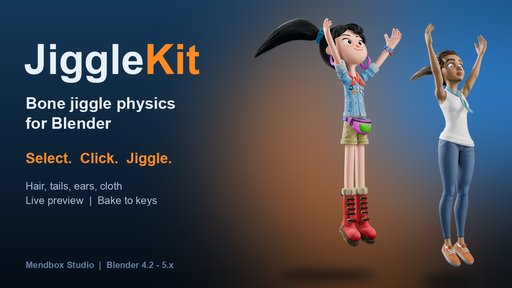
What JiggleKit is
JiggleKit adds jiggle physics to the bones of a character in Blender. Select an area of the mesh in Edit Mode (chest, belly, hips, an ear, a tail, a hair strand, a cloth flap) and press Create Jiggle from Selection. JiggleKit places a bone or a chain of bones in that area, blends weights for them into the weights the mesh already has, and turns on the physics. Press Play and the area swings behind the animation: a spring with damping, inertia from the parent's motion, gravity and an angle limit. Sphere and capsule colliders keep soft parts out of the body. When you like the motion, Bake to Keyframes writes it as ordinary keys on a new NLA track, for rendering and for export to Unity, Unreal or Godot.
For hair or a tail that is already rigged, select the bones and press Add Chains from Selected Bones: the same physics, and your weights are not touched.
Who it is for: character animators, people who make characters for videos, and game developers who need baked secondary motion in their clips. A free 8-bone version, JiggleKit Free, is available on Blendkit.
This page covers version 1.0.0.
System requirements
- Blender 4.2 or newer, including 5.x (tested on 4.2 LTS, 4.5 LTS and 5.2). JiggleKit is a Blender extension.
- Windows, macOS and Linux. JiggleKit is pure Python with the numpy that ships inside Blender, no compiled modules.
- No internet connection and no extra software are needed. The extension asks for no permissions.
- The add-on is a .zip file. Do not unzip it.
Install, update and remove
Install JiggleKit from a .zip file
- In Blender open Edit > Preferences (on a Mac: Cmd+,).
- Click Get Extensions in the left list.
- Click the small arrow menu in the top-right corner and choose Install from Disk...
- Pick the JiggleKit .zip file. The extension turns on. If its checkbox is not ticked, tick it.
Safari note. Safari may unpack a .zip download by itself, and then Blender has no .zip to install. Download with Chrome or Firefox, or turn off "Open safe files after downloading" in Safari.
Where is the panel?
- Hover over the 3D Viewport.
- Press N to open the sidebar.
- Click the tab JiggleKit.
The main panel shows the armature, the Live switch, the status line and Reset. Below it are the sub-panels Create, Chains, Colliders, Bake, Advanced and Result. Every action is a button: you never need a right click, a middle mouse button or a numpad.
Update and remove
To update, install the new .zip the same way with Install from Disk. Restart Blender if the version does not change. To remove the add-on, open Edit > Preferences > Get Extensions, open the arrow next to JiggleKit and choose Uninstall. Your .blend files keep their chains; they simply do not move without the add-on.
Quick start: one click from a selected area to jiggle
- Select the character mesh. It should be skinned to an armature (an Armature modifier). Press Tab for Edit Mode.
- Select the vertices of the area, for example the ear. Any selection tool works: box, circle, L for linked.
- In the Create sub-panel pick the Region: Chest, Belly, Hips, Ears, Hair Strand, Tail, Cloth Flap, Accessory or Generic. The region sets the number of bones, mirroring and the physics preset.
- Press Create Jiggle from Selection. JiggleKit leaves Edit Mode, adds the bones (bone collection JiggleKit), creates the vertex groups and weights, stores the chain and turns on the live simulation. The Result box lists the bones and any warnings. One Cmd+Z (Ctrl+Z on Windows) undoes all of it.
- Press Play (Space). The area swings behind the animation. Change Stiffness, Damping and the other values in the Chains sub-panel while it plays.
- Optional: in Pose Mode select the body bones (spine, upper arms, thighs) and press Colliders > Auto from Selected Bones, so soft parts do not pass through the body.
- Press Bake > Bake to Keyframes. The keys go to a new NLA track "JiggleKit Bake" and the live simulation pauses for this armature.
Already rigged bones (hair, tail): Pose Mode, select the bones of the chain from the root to the tip, press Chains from Selected Bones in Create (or + in Chains). Clothes on a second mesh: Edit Mode on the clothes, select the area, make the chain active in Chains and press Weights for Selection.
Reference: every button and setting
Main panel
- Armature name: The armature the panel works on: the active armature, or the armature of the active mesh's Armature modifier.
- Live: Runs the live simulation of this armature during playback and frame changes. Off: the chain bones go back to their rest rotation.
- Status line: Live · 3.2 ms/frame (median of the last 30 frames, simulation time only), Baked (live paused) or Off. Above 20 ms the line is red and a row "Slow on this computer: use Bake" with a Bake button appears.
- Reset: Restarts the simulation from the current pose.
Create
- Region: What it does: Type of area. Sets the bone count, mirroring and the physics preset (table in "Presets").; Default: Chest
- Armature: What it does: Armature to add bones to. Empty = the armature of the mesh's Armature modifier.; Default: Empty
- Name: What it does: Base name of the new bones. Empty = the region label (for example JK_Chest.L).; Default: Empty
- Mirror X: What it does: Also create the mirrored side (armature X axis). Needs a symmetric mesh. Ignored when the selection is centered.; Default: From the region
- Segments: What it does: Bones in a chain region (Ears, Hair Strand, Tail, Cloth Flap, Accessory). Lowered with a warning when the area has too few edge rings.; Default: From the region
- Weights: What it does: Carve: take weight from existing groups and give it to the new bones; every vertex keeps its total. None: bones only.; Default: Carve
- Falloff: What it does: How far weights spread outside the selection, as a fraction of the region radius.; Default: 0.6
- Core: What it does: Inner ramp over which the weight rises from 0 to 1 inside the selection.; Default: 0.4
- Max Influences: What it does: After blending, keep at most this many deform-bone groups per vertex and normalize. Locked groups and groups that are not deform bones (pin, mask) are not counted or changed. 0 = no limit. Use 4 for game engines.; Default: 0
- Parent: What it does: Auto: the bone with the most weight under the selection. Active Bone: the active bone of the armature.; Default: Auto
- Create Jiggle from Selection: What it does: Bones, weights and physics from the selected vertices. One undo step.; Default:
- Chains from Selected Bones: What it does: Chains from the selected bones of an existing rig (Pose Mode). Weights are not changed.; Default:
- Weights for Selection: What it does: Gives the selected vertices of this mesh weights for the active chain, with the same falloff.; Default:
Chains
The list shows each chain with its preset and an on/off box. + adds chains from the selected bones, - removes the active chain (its bones stay and go back to their rest rotation). Apply sets a preset; changing a value by hand shows "Custom".
- Stiffness: What it does: How strongly the bone is pulled back to the animated pose. 0 = free swing, 1 = very stiff and fast. On a chain: see "Chains of different length" below.; Range: 0 to 1
- Damping: What it does: Motion loss, the same at every frame rate. 0 = never stops, 1 = no swing. On a chain: see "Chains of different length" below.; Range: 0 to 1
- Inertia: What it does: How much of the parent's motion the bone does not inherit. 0 = follows rigidly, 1 = full lag.; Range: 0 to 1
- Gravity: What it does: Multiplier of the armature's gravity (Advanced).; Range: 0 to 3
- Angle Limit: What it does: Largest angle between the simulated bone and its animated direction.; Range: 1° to 170°
- Tip Ratio: What it does: Stiffness of the last bone divided by that of the first; linear along the chain in between. Below 1 the tip is looser.; Range: 0.1 to 3
- Tip Damping: What it does: How much faster the last bone loses its motion than the first; linear along the chain in between. Above 1 keeps the end of a soft chain from whipping and folding.; Range: 0.1 to 10
- Buckle: What it does: How much a bone that points up bends under a load along its length: its own weight, a hop, a landing. 0 = a rigid pendulum, which ignores them. Level and hanging bones are not affected.; Range: 0 to 1
- Radius: What it does: Collision radius at each bone tail. 0 = a point.; Range: 0 to 10 m
- Collide: What it does: Use the armature's colliders.; Range: On / off
- Influence: What it does: Mix between the animated pose (0) and the simulated pose (1).; Range: 0 to 1
Chains of different length
The same Stiffness and Damping give the same look on a chain of two bones and on a chain of eight. JiggleKit does this by itself:
- The values you set are those of a chain of four equal bones. Its first bone swings at √(1600 × Stiffness) / 2π Hz and loses its motion at the Damping you set.
- On a chain with another number of bones, the spring and the damping of every bone are multiplied by bone count / 4: × 0.5 for two bones, × 0.75 for three, × 1.5 for six, × 2 for eight and more. A chain of a few long bones is softer and swings longer, a chain of many short bones is stiffer and stops sooner. Without this a strand cut into six bones swung almost twice as far as the same strand cut into three.
- The bone count is the chain length divided by its longest bone, so a short stub at the end does not count as a whole bone.
- Tip Ratio and Tip Damping run along the length of the chain: the last bone gets Tip Ratio × the stiffness and Tip Damping × the damping of the first bone, whatever the number of bones.
- A single bone (Chest, Belly, Hips, Generic, a one-bone earring) is not a chain: it gets exactly the values you set.
You do not need to change Stiffness or Damping because a chain has few or many bones. Change them for the look: a ponytail that hangs straight down moves less than a top knot that stands up, with any number of bones; lower Damping (about 0.13 instead of 0.20 for Hair Strand) if hanging hair should swing more.
| Copy to Selected | Copies the active chain's settings to the chains of the selected bones. | |
Colliders
The list has + (a capsule on the active bone) and -. For the active collider:
- Bind: Bone: follows a bone of this armature. Object: follows an object (an Empty works well); sphere only.
- Shape: Capsule (a rounded cylinder along the bone) or Sphere.
- Bone: The bound bone. Renaming the bone keeps the binding.
- Radius: Collider radius.
- Start / End: Position along the bone from head (0) to tail (1): the sphere center, or the capsule ends.
- Offset: Offset in bone axes (X side, Y along the bone, Z front).
- Show in Viewport: Draws the colliders in the 3D view.
- Auto from Selected Bones: One collider per selected body bone, sized from the mesh around it. Shape, Margin (radius = measured body radius × margin, default 0.9), Min Weight (only vertices with at least this weight are measured, default 0.5), Active Mesh Only.
A collider on a simulated bone, or on a child of one, is switched off with a note.
Bake
- Scene Range / Start / End: What it does: Frames to bake.; Default: Scene range
- Step: What it does: Key every Nth frame. The simulation still runs every frame; the last frame is always keyed.; Default: 1
- Target: What it does: NLA Track: a new track "JiggleKit Bake" with one strip. Active Action: writes into the active action and replaces the rotation keys of the simulated bones (asks first).; Default: NLA Track
- Warm-up: What it does: Frames simulated before the first baked frame, to settle loops.; Default: 0
- Reduce Keys / Tolerance: What it does: Removes keys that linear interpolation reproduces within the tolerance.; Default: Off / 0.002
- Bake to Keyframes: What it does: Simulates the range and writes the keys. Progress shows in the status bar. The live simulation of this armature pauses ("Baked: live simulation paused").; Default:
- Clear Bake: What it does: Removes what the bake made (the NLA track and its action, or, for the target Active Action, the baked rotation keys of the jiggle bones) and resumes the live simulation. Other keys stay.; Default:
Advanced
- Substeps: What it does: Minimum simulation steps per frame. More are added by themselves for stiff chains and low frame rates.; Default: 2
- Max Catch-up: What it does: Largest frame jump simulated as one step during playback. Larger jumps restart the simulation.; Default: 3
- Time Scale: What it does: Simulation speed. 1 = real time at the scene frame rate. Applies to live and bake.; Default: 1
- Gravity: What it does: World gravity in m/s², converted by the scene unit scale.; Default: 0, 0, -9.81
- Use Cache / Cache Frames: What it does: Remembers played frames so scrubbing back is instant.; Default: On / 5000
- Repair Chains: What it does: Fixes duplicated IDs, removes dead chain links and reports broken chains.; Default:
- Capture Rest Pose: What it does: Stores the current rotation of the chain bones as their rest rotation (for bones without animation). In the middle of a swing the jiggle is taken out: only bones you turned by hand change. A turn you do not capture is undone on the next frame.; Default:
- Open Manual: What it does: Opens this page.; Default:
Result
Shows the last operation (bones, groups, chains) and the notes of the current rig: broken chains, constraints, colliders that are off, simulation errors.
Presets
Starting values. Apply in Chains sets them again on the active chain. Frequency and settle time follow from Stiffness and Damping (measured within 1 % in the test suite); settle time = until the swing is under 5 % of its start.
- Chest: Bones: 1; Mirror: yes; Stiffness: 0.30; Damping: 0.14; Inertia: 0.90; Gravity: 0.15; Angle limit: 30°; Tip ratio: 1.0; Tip damping: 1.0; Buckle: 0; Swing: 3.5 Hz; Settles in: 0.66 s
- Belly: Bones: 1; Mirror: no; Stiffness: 0.22; Damping: 0.20; Inertia: 0.92; Gravity: 0.10; Angle limit: 22°; Tip ratio: 1.0; Tip damping: 1.0; Buckle: 0; Swing: 3.0 Hz; Settles in: 0.45 s
- Hips: Bones: 1; Mirror: yes; Stiffness: 0.32; Damping: 0.16; Inertia: 0.90; Gravity: 0.10; Angle limit: 22°; Tip ratio: 1.0; Tip damping: 1.0; Buckle: 0; Swing: 3.6 Hz; Settles in: 0.57 s
- Ears: Bones: 2; Mirror: yes; Stiffness: 0.50; Damping: 0.33; Inertia: 0.85; Gravity: 0.20; Angle limit: 50°; Tip ratio: 0.85; Tip damping: 2.0; Buckle: 0.5; Swing: 3.2 Hz; Settles in: 0.50 s
- Hair Strand: Bones: 4; Mirror: no; Stiffness: 0.06; Damping: 0.20; Inertia: 0.85; Gravity: 0.50; Angle limit: 110°; Tip ratio: 0.85; Tip damping: 4.0; Buckle: 0.5; Swing: 1.6 Hz; Settles in: 0.45 s
- Tail: Bones: 6; Mirror: no; Stiffness: 0.08; Damping: 0.11; Inertia: 0.90; Gravity: 0.30; Angle limit: 80°; Tip ratio: 0.8; Tip damping: 5.0; Buckle: 0.3; Swing: 2.2 Hz; Settles in: 0.57 s
- Cloth Flap: Bones: 3; Mirror: no; Stiffness: 0.20; Damping: 0.16; Inertia: 1.00; Gravity: 1.00; Angle limit: 80°; Tip ratio: 0.5; Tip damping: 2.0; Buckle: 0; Swing: 2.5 Hz; Settles in: 0.78 s
- Accessory: Bones: 2; Mirror: no; Stiffness: 0.40; Damping: 0.19; Inertia: 1.00; Gravity: 0.80; Angle limit: 90°; Tip ratio: 0.7; Tip damping: 1.0; Buckle: 0; Swing: 2.9 Hz; Settles in: 0.95 s
- Generic: Bones: 1; Mirror: no; Stiffness: 0.30; Damping: 0.15; Inertia: 0.90; Gravity: 0.00; Angle limit: 30°; Tip ratio: 1.0; Tip damping: 1.0; Buckle: 0; Swing: 3.5 Hz; Settles in: 0.61 s
Swing and settle time are those of the first bone of a chain with the preset's bone count ("Chains of different length": Ears and Accessory have two bones, so each bone gets half the Stiffness and half the damping rate of the table; Cloth Flap three quarters; Tail one and a half times); with Tip Damping above 1 the end of the chain settles sooner. One bone made with a chain preset gets the table values as they are.
Tuning tips: softer and slower = lower Stiffness; fewer swings = higher Damping; less lag when the body moves = lower Inertia; a heavy hanging part = more Gravity; the end of the chain flicks or folds = more Tip Damping; hair that stands up should sink and bounce when the character hops = more Buckle. A short bone in a chain is made stiffer by itself, so that it bends by the same angle as the longest bone of its chain; you do not need to split a chain because its last bone is short. Very short bones all along a chain (under about 6 cm with the Hair Strand preset on a character of real size) hang far down and fold: raise Stiffness or lower Gravity. A chain of equal bones reacts on its own bones a little; if you need the exact same motion at 24 and 60 fps, raise Substeps to 4 or 6.
Colliders
Colliders are spheres and capsules bound to bones (or spheres bound to objects). Chain bones stay outside them: the simulated tail point of each bone, and the middle of the bone, are pushed out to the collider surface plus the chain's Radius. Colliders only push the jiggle bones; they do not move the body.
- Make body colliders with Auto from Selected Bones: Pose Mode, select the spine, chest, upper arm and thigh bones, press the button. Each collider is sized from the mesh around its bone.
- Check them with Show in Viewport. A good body collider sits just inside the skin.
- If a chain root starts inside a collider, the Result box warns "Chain root X is inside a collider". Shrink the collider or lower its Margin.
Live preview, scrubbing and rendering
- The simulation runs when the frame changes: during playback and when you step frames.
- Scrubbing: frames you have already played are cached. Dragging the timeline back over them shows the played jiggle at once. Dragging past the last played frame shows no jiggle until you play from there. Jumping to the start (Shift+Left) restarts. Editing the animation or a chain value clears the cache.
- When playback drops frames on a heavy scene, the live view steps over several frames at once and can differ from the bake. The bake always steps every frame.
- Rendering live jiggle from the UI: turn on Render > Lock Interface before Render Animation, or bake first. Command-line renders (blender -b file.blend -a) apply the live jiggle too. For final renders, baking is the safest.
Bake and export (Unity, Unreal, Godot)
- Set the frame range, press Bake to Keyframes. Two bakes of the same input give the same keys.
- The keys are ordinary rotation keys on the jiggle bones, on the NLA track "JiggleKit Bake" (or in the active action).
- Export with File > Export > FBX (Bake Animation on) or glTF (Animation on). Include the NLA strips or push the bake into your action as your pipeline needs.
- For engines that allow 4 weights per vertex, set Max Influences to 4 in Create before you create the jiggle.
Outside the baked range the bones follow their own animation (the strip does not extend). To change the motion: Clear Bake, adjust, bake again.
Constraints, Rigify and other rigs
A constraint on a simulated bone acts after JiggleKit writes the pose, so some constraints replace the jiggle. JiggleKit names them in the Result box. Measured on a 4-bone strand:
- Copy Rotation, Copy Transforms: Effect on the jiggle: replaced; Note in the panel: "its Copy Rotation constraint overrides the jiggle"
- Damped Track, Track To, Locked Track, Stretch To: Effect on the jiggle: replaced; Note in the panel: same
- IK on the bone, or the bone inside another bone's IK chain: Effect on the jiggle: replaced; Note in the panel: same / "is in the chain of the IK constraint on X"
- Child Of, Action, Armature, Spline IK, Clamp To, Follow Path, Shrinkwrap, Floor and others that move the bone: Effect on the jiggle: moved off the simulation; Note in the panel: "overrides the jiggle"
- Limit Rotation: Effect on the jiggle: clamped; Note in the panel: "its Limit Rotation constraint clamps the jiggle"
- Limit Location / Scale, Copy Location / Scale, Maintain Volume: Effect on the jiggle: none in the test; Note in the panel: "has constraints; the result may be offset"
- Any constraint on the parent of a chain: Effect on the jiggle: none: parents are read with their constraints; Note in the panel: none
Muted constraints and constraints at 0 influence are ignored. Fix: jiggle the bone the constrained bone follows, or mute the constraint.
Rigify: add jiggle to controller bones (for example breast.L): the deform bones follow them through Rigify's constraints. A deform bone without a constraint (such as DEF-breast.L) also works. Do not add jiggle to deform bones with Copy Transforms (such as DEF-spine.006): the panel warns and nothing moves. Auto-Rig Pro is not tested; its deform bones also follow controllers by constraints, so add jiggle to the controllers there too.
Linked rigs: link the character collection and use Object > Library Override > Make. Overridden rigs simulate like local ones. A plain link without an override cannot be posed (a Blender rule). Create the jiggle in the library file: new bones cannot be added to a linked armature. On Blender 4.2 and 4.5 you can also add chains from existing bones and colliders on the override, and change settings there; they are saved with your file. Blender 5 does not save JiggleKit data of an override (the panel shows "Override: changes here are not saved" and adding chains or colliders is refused): edit the rig in its library file.
Mirrored armatures (negative object scale) and motion blur work with the live simulation: sub-frames show the jiggle of the neighbouring frames.
Limits
- Rotation-only bone physics: bone heads follow their parents, tails swing. No bone stretch and no soft-body mesh.
- One-way: the tip does not pull the root, and the body does not react to the jiggle.
- Collision only with spheres and capsules. No mesh collision and no self collision.
- Live speed depends on the rig. The panel shows the milliseconds per frame; on heavy characters, bake.
- Weights from one click are a strong start, not a guarantee. On complex areas, check them in Weight Paint and touch up with the brush.
- Bones in Euler or axis-angle rotation mode (FK controls of Rigify, CloudRig) are skipped with a message. Press Convert to Quaternion and Add Chains in the Result box: the bones are switched and keep their pose. Bones with keyframes or drivers on that rotation are left alone: switch those by hand.
- Bones in a hidden bone collection cannot be selected: show the collection first (Armature properties > Bone Collections). The bones of a chain are also put in the bone collection "JiggleKit", which is shown when bones are added.
- No VRChat PhysBones and no Unity component export.
Troubleshooting
The bone does not move
Check the Result box. Common notes: a constraint overrides the jiggle (see the table above); "Inherit Rotation off or non-Full Inherit Scale; the chain was skipped"; "uses Euler/axis-angle rotation" (press Convert to Quaternion and Add Chains, or set the bone to Quaternion); Live is off; a bake is active ("Baked (live paused)": press Clear Bake).
The rig is heavy and playback is slow
The status line shows the cost. Above 20 ms per frame it turns red and offers Bake. Bake the range and play the keys. Fewer chains, fewer bones per chain and fewer colliders also help.
I duplicated bones or the character
Duplicating the object (Shift+D or Alt+D) gives a copy that swings on its own. Duplicating chain bones in Edit Mode copies their IDs; JiggleKit fixes them by itself and reports "duplicated IDs fixed". Advanced > Repair Chains does the same on demand.
"Chain X broken at bone index N"
A bone in the middle of the chain was deleted or re-parented. The chain is simulated up to that bone. Remove the chain and add it again from the bones you want.
The render shows no jiggle
Turn on Render > Lock Interface, or bake first.
Messages when creating
- Select at least 4 vertices.: The selection is too small.
- Selection has N separate parts: select one part.: The selected vertices form several patches that do not touch. One Create makes one bone or chain: select one patch (in Edit Mode press A twice to clear a stale selection first).
- The armature X is linked from a library: new bones cannot be added here.: Create the jiggle in the library file, or use Chains from Selected Bones on existing bones.
- No armature found. Add an Armature modifier or pick an armature in the panel.: The mesh is not skinned.
- The selection covers more than N% of the mesh. Select a smaller area. For a whole separate part (hair, tail, accessory) choose a chain region: ...: One bone (Chest, Belly, Hips, Generic) is never made for most of a mesh: select only the soft area. A whole hair, tail or accessory mesh works with the chain regions.
- The selection covers more than N% of the mesh. That is fine for a whole separate part (hair, tail), but its weights are on bones that branch (a body, not one strand) ...: With a chain region you may select all of a separate hair, tail or accessory mesh (or nearly all): the chain starts at the end that sits on the bone the mesh is weighted to. A body is weighted to bones that branch (spine, arms, legs), so there is no single place to attach a chain: select only the part that should move, or set Parent to Active Bone and make the bone the part hangs from the active bone. The same message with "the mesh has no weights for the bones of this armature" means the mesh is not weighted yet.
- Whole part: the chain starts at the end nearest the bone "X". ...: Shown when a whole separate mesh (or island) was selected, so you can check the end. Wrong end: undo, set Parent to Active Bone, make the bone the part hangs from the active bone and create again.
- The part of this mesh that is not selected is at the tip of the chain, not at its root ...: Most of a separate mesh is selected, but its far end is not. The chain is still attached at the root; the unselected tip keeps its old weights. Select the part up to its tip.
- The selected area has too few edge rings for N bones; created M.: The chain got fewer bones than asked.
- Mirror: no matching vertices found; created one side only.: The mesh is not symmetric.
- Object scale is not applied; results may be off.: Apply scale (Cmd+A > Scale) on the mesh and the armature.
JiggleKit Free
JiggleKit Free is the same add-on with one limit: 8 simulated bones per file. Everything else is included: Create, chains from bones, colliders, presets, live preview and Bake.
- Creating a 9th jiggle bone is refused: "Demo limit: 8 jiggle bones. Get the full version."
- A file made with the full version opens in Free: the first 8 bones (in chain list order, root first) are simulated, the others stay still. The panel shows "Simulated 8 of N bones (Free limit 8)".
- Files you save with Free open in the full JiggleKit without conversion.
- JiggleKit Free and JiggleKit cannot be enabled together. Disable Free in Preferences before you enable the full version.
FAQ
How do I add jiggle physics to a character in Blender?
Edit Mode on the character mesh, select the area, pick the Region in JiggleKit's Create panel and press Create Jiggle from Selection. Press Play. The Quick start above has every step.
Does it change my existing weights?
Only under the selected area: weight moves from the existing groups to the new bones, and every vertex keeps its total. With Weights = None nothing is changed. One undo step reverts everything.
Can I use it on a rig that already has hair or tail bones?
Yes. Select the bones in Pose Mode and press Chains from Selected Bones. Weights are not touched.
Does the jiggle work in renders?
Yes, with Render > Lock Interface on, or after a bake.
Can I export the jiggle to Unity, Unreal or Godot?
Bake to Keyframes, then export with FBX or glTF. The jiggle is ordinary bone animation then.
Is the bake the same as what I saw while playing?
Yes, when playback did not drop frames: live and bake use the same step. Two bakes of the same input give the same keys.
Does it work with Rigify or Auto-Rig Pro?
Rigify: yes, put jiggle on the controller bones. Auto-Rig Pro is not tested; the same advice applies.
What happens if I rename bones or duplicate the character?
Nothing breaks: chains are stored by internal IDs, not names.
Does it work on Windows, macOS and Linux?
Yes. Version 1.0.0 passed the test suite on Blender 4.2, 4.5 and 5.2 on macOS (Apple Silicon), Windows (x86-64) and Linux (x86-64).
Does JiggleKit need an internet connection?
No.
Support, compatibility and changelog
Support: [email protected]. Include your Blender version, your operating system, the lines of the Result box and, if possible, a small .blend file that shows the problem.
Compatibility, as tested: version 1.0.0 on Blender 4.2.23, 4.5.14 and 5.2.2, on macOS (Apple Silicon), Windows (x86-64) and Linux (x86-64).
License: GPL-3.0-or-later.
Changelog
- 1.0.0: Date: 2026-11-24; Change: First release.


