Uploading a model 🔗
This is a list of things to check and do before uploading your model.
Rule number one: READ the tooltips. We try to help you directly in the add-on.
Private Uploads 🔗
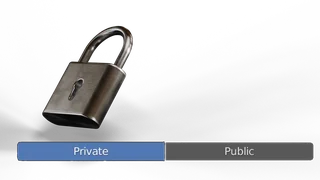
If you just want to upload models for your private usage, you can skip all the instructions below. These instructions are only relevant for models you would like to share with the public.
General model quality 🔗
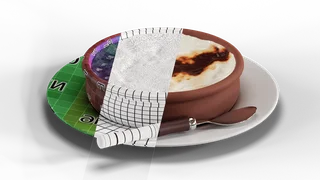
Check if your model quality answers the requirements of our database. Watch how other assets are done.
Check your model for any possible mistakes. This includes all aspects - modeling, texturing, UVs, rigging, etc.
Snapping center/parent 🔗
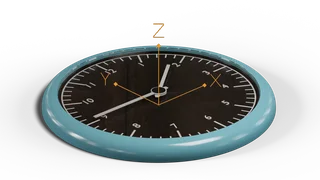
Make an easily snappable parent or center. This can be an empty object. The assets can snap to a floor, a ceiling or a wall.
On the picture, you can see an example of a clock prepared for snapping- an empty object on the backside of the model, Z-axis pointing away from the surface. It seems as if the clock is lying on the floor, which is exactly what you need for it to snap onto the walls correctly. The easiest way to understand this principle is to download some of Blendkit (formerly BlenderKit) models and examine them.
Asset front orientation 🔗
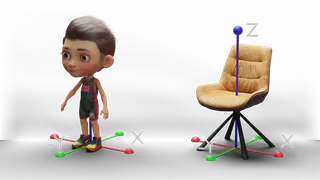
Orient the model so that its front side faces Blender's Front View direction, which is the -Y axis.
Before submitting the asset, always apply its rotation. This ensures the asset behaves correctly in the library, in scenes, and during further use.
For objects with a clear front, such as chairs, cars, characters, cameras, or appliances, orient the side that would normally face the user toward -Y.
Real world dimensions 🔗
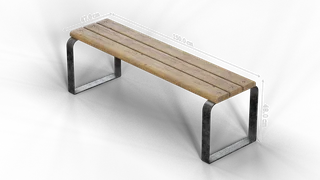
Make sure your asset has correct real world dimensions. Remember that 1 Blender unit = 1 meter.
The dimensions entered during upload must match the actual size of the model. These values describe the physical size of the asset, not the Scale transform values in Blender.
Before uploading, check the meshes and object origins, verify the model dimensions, and always apply Scale. Apply Scale to child objects whenever possible as well.
This rule also applies to printable assets. Even if export formats or slicer software handle units differently and the model appears at a different scale after import, the source asset in Blender must still follow the BlendKit standard of 1 Blender unit = 1 meter. The intended print size should be defined correctly without changing the scale convention of the Blender file.
Models should not be libraries or collections of objects. For example, a bowl of fruit can be considered as one composed model. However, a spoon, a fork and a knife from the same design line, should be marked as a design collection.
Naming is important. Do not use numbers when naming your materials. Always use names describing them accurately.
The thumbnail size should be at least 1024x1024 pixels. The thumbnail is meant to show and explain your model. You can use graphic elements or mix several images.
To easily create a thumbnail, use the 'Generate thumbnail' operator, which renders a simple thumbnail from the background. Don't use a transparent background.
Blendkit upload panel 🔗
In the Blendkit upload panel, add info about your model. Describing your properties correctly helps Blendkit search engine to find your assets.
Only real-world manufacturers and designers should be described as such. Your name and company belong to your profile page.
Design year is important for human-made objects. If your asset comes from the future or a parallel reality, simply try to guess the year. All steampunk stories are from the 1800s anyway, right?
Conditions help to distinguish between new and deteriorated assets.
Fill your profile information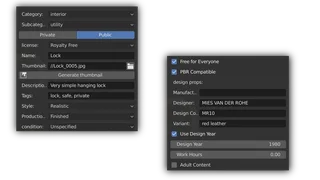
Upload and Download your model
Finally, upload your model!
Then check you did everything right by searching your model in the database and downloading it.
And no worries. All the instructions you just read will take you a few minutes to follow once you get used to the uploading process.
Validation 🔗
After uploading your model, wait for our validation. You will receive a personal e-mail from our admin to let you know if your model was accepted to the Blendkit database.
We may also ask you to change some things in your model in case we could not validate it immediately.
Your asset will receive a validation status.
What does validation status mean?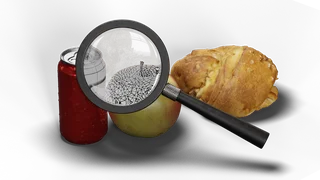
A few words about Piracy and CC0 models 🔗
We're mainly here for users and creators. First and foremost we want to provide quality content to our users and let creators make money by paying them a fair price. That's why we have a zero-tolerance policy for piracy. What is piracy?
Piracy is the distribution of licensed content without permission or notification of the original author. Users who upload such content will be permanently banned. Our administrators are very vigilant about this content and pirates will be caught sooner or later.