 Models
 Materials
 HDRIs
 Scenes
 Brushes
 Node Groups
 Printables
 Creators
 Creations
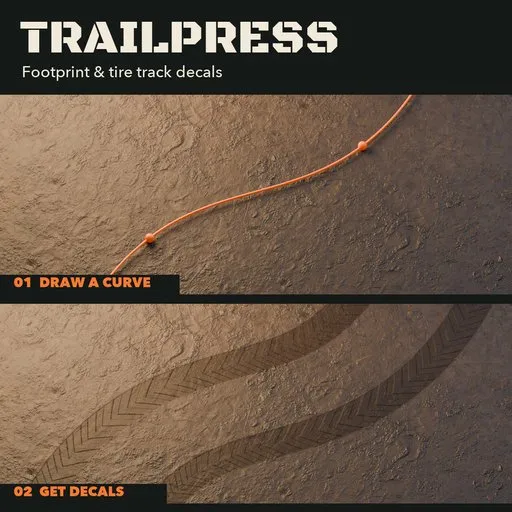
Trailpress – Footprint & Tire Track Generator for Blender
 add-on
Draw footprint and tire-track decals along editable curves. Fit your ground with transparent edges and inward bump, or choose relief mesh output for real geometry.
Explore all my Blender addons
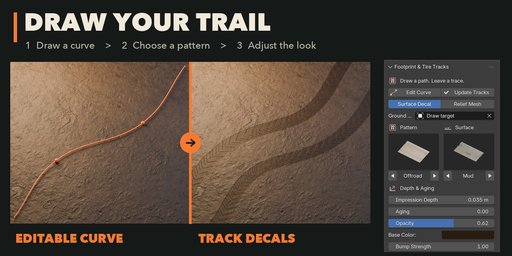
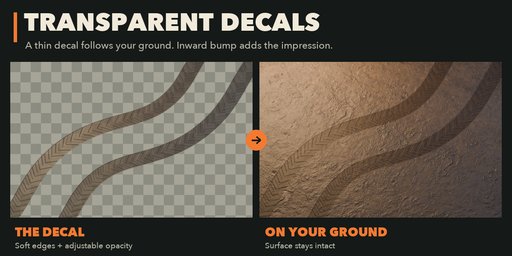
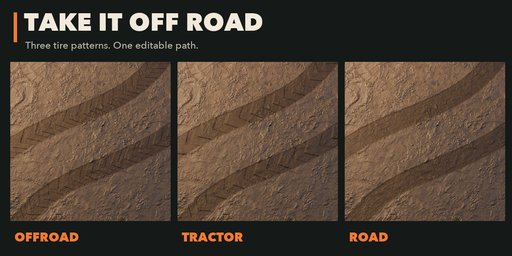
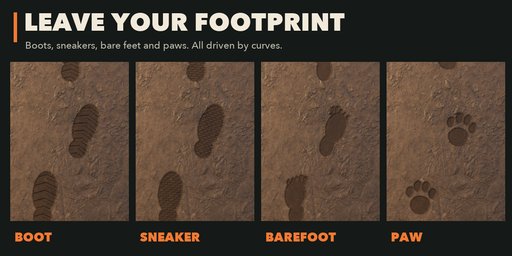
Trailpress creates transparent footprint and tire-track decals along editable Blender curves. Draw over a selected ground mesh to fit a thin decal plate to its surface. Sketch a route using Blender's native curve drawing tools, use an existing curve, or start with an example path. Adjust the path with familiar control points and handles while keeping track settings available in the sidebar.
Choose boot, sneaker, barefoot or paw impressions, or road, offroad and tractor tire patterns. Mud, sand and snow presets set the decal roughness; relief output also uses bundled CC0 photographic PBR materials. Your existing ground keeps its own material. The default decal uses a soft silhouette, half-transparent base color and inward bump shading. Depth controls the apparent recess and aging softens its edges. Optional relief output changes the actual mesh geometry. Foot size, stride, tire width and axle gauge give control over the spacing and scale.
Features
- Native curve drawing and editing, with multiple splines and closed loops
- Transparent decal plates with editable opacity, tint and inward bump
- Surface conformance with a controllable offset
- Optional recessed mesh geometry with raised impression rims
- Depth and aging controls, plus seeded surprise variations
- UV-mapped output and photographic mud, sand and snow materials
Decals conform to an existing surface without altering it. Optional relief strips are separate meshes. Curve elevation sets its height. Self-crossing strips are not merged. Mesh spacing controls detail and memory use.
Tested on Blender 4.2, 4.5 and 5.2 LTS.
How to use
Quick start
Install the ZIP from Preferences, Get Extensions, Install from Disk. Open the Tracks sidebar. Choose a pattern and surface, then draw a curve or use an existing un-bevelled 3D curve. Leave Edit Mode to generate the surface. Adjust depth and aging; use Edit Path to reshape the route.
Select a ground mesh before drawing to use surface conformance. Surface Decal is the default: a transparent plate with inward bump shading. Relief Mesh instead creates a separate strip with recessed geometry. Neither mode cuts your existing terrain.
FAQ
Can I draw the path?
Yes. Draw Curve activates Blender's native curve drawing tool. You can also use existing Bezier, poly and NURBS curves, then reshape them with standard curve editing tools.
Does this deform my existing terrain?
No. The default transparent plate conforms to your selected ground and uses inward bump shading. Optional relief output generates a separate UV-mapped ground strip.


