 Models
 Materials
 HDRIs
 Scenes
 Brushes
 Node Groups
 Printables
 Creators
 Creations
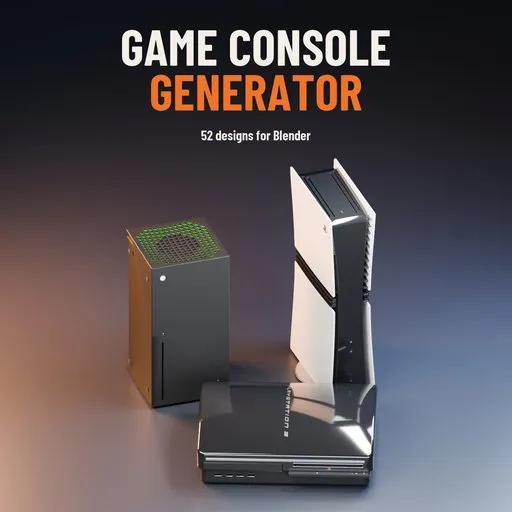
Game Console Generator for Blender
 add-on
Generate 52 editable game consoles in Blender, including 32 reference-based PlayStation, Xbox, and Nintendo exteriors. Open supported drives, select finishes, and dial in realistic wear.
Explore all my Blender addons
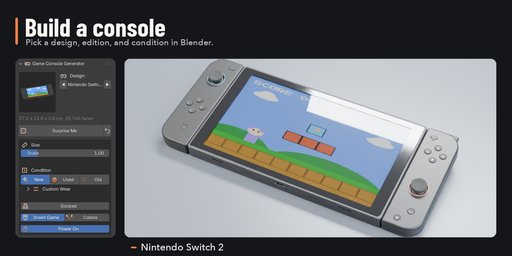
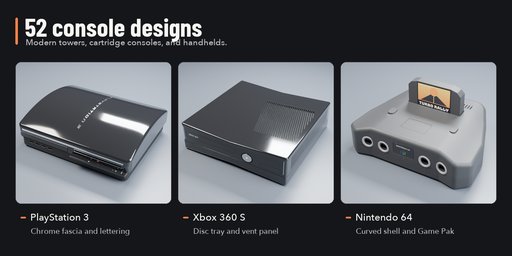
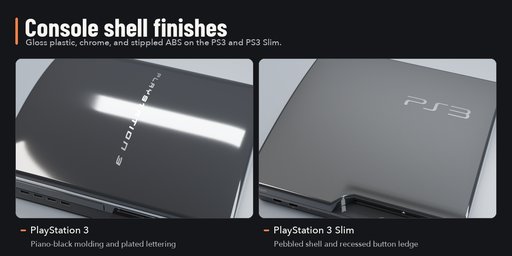
Build a retro gaming shelf, a modern TV setup, or a handheld product shot with 52 editable console designs. Browse 32 hardware-reference presets spanning PlayStation, Xbox, and Nintendo, alongside 20 original cartridge boxes, disc systems, towers, and portable designs. The hardware presets follow published dimensions and reference photos, with model-specific casing finishes and hardware markings. Screen and game media artwork is original. Pick a color edition, adjust the scale and condition, and add compatible accessories and game media where the design supports them.
Details for close-ups
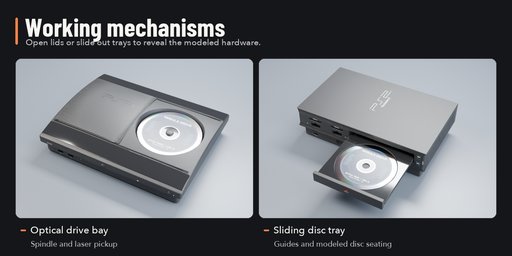
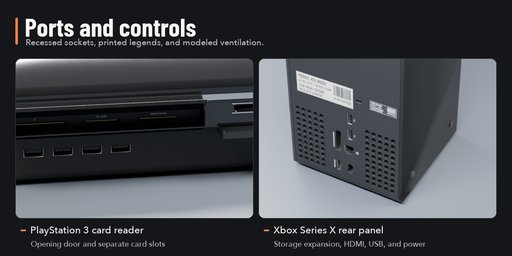
Open supported lids and trays to reveal molded ribs, spindles, laser pickups, and guide rails. Show a cartridge seated in its slot or a disc on its tray. Modeled connector recesses, vent openings, controller grips, and texture-based markings give the models detail from front to back. Turn on indicator lights or choose from five included pixel-art pictures for a handheld display.
Materials and wear
Molded ABS, brushed metal, rubber, lacquered wood, display glass, and iridescent disc surfaces react to studio and scene lighting. Switch between New, Used, and Old or tune scratches, fingerprints, dust, yellowing, and label fade with individual controls.
Editing in Blender
Choose a design and edition from the visual browser, or use Surprise Me to create a variant. Supported designs include Mini, disc or digital, horizontal or vertical, and docked configurations. Keep a console editable in the sidebar, or use Apply as Mesh to finish it with standard Blender tools.
Requires Blender 4.2 or newer. Tested on Blender 4.2, 4.5 and 5.2 LTS.
How to use
Installation
Open Edit → Preferences → Get Extensions. From the menu in the upper right, choose Install from Disk and select the downloaded zip. Enable Game Console Generator if Blender prompts you.
Build a console
-
In the 3D Viewport press N and open the Console tab. With no generated console selected, choose a design and click Add Console. You can also use Shift+A → Mesh → Game Console.
-
Select the generated console to change its design, color edition, scale, and condition. The sidebar shows the drive, orientation, dock, and accessory options supported by your design.
-
Open Details for compatible lid and tray positions, screen pictures, and game labels. Use Custom Wear for individual material adjustments.
-
When you have finished customizing, open Export and click Apply as Mesh if you want to continue with standard mesh editing tools. Keep an editable copy if you plan to make more variants.
FAQ
Which Blender versions are supported?
Blender 4.2 and newer. It is tested on Blender 4.2, 4.5 and 5.2 LTS.
Do the materials work in Cycles and Eevee?
Yes. Both engines support the included materials and powered displays. The screen glass uses an Eevee-specific shader so the picture remains visible without scene ray tracing.
Can I open a disc bay or connect a controller?
Compatible designs expose a Lid Open slider for the hinged lid or sliding disc tray. Select up to two controllers and enable Cables on designs with supported sockets.
Can I edit the resulting mesh directly?
Yes. Select the console and use Export → Apply as Mesh. This turns off the generator controls for that object so you can continue editing the finished geometry.


