 Models
 Materials
 HDRIs
 Scenes
 Brushes
 Node Groups
 Printables
 Creators
 Creations
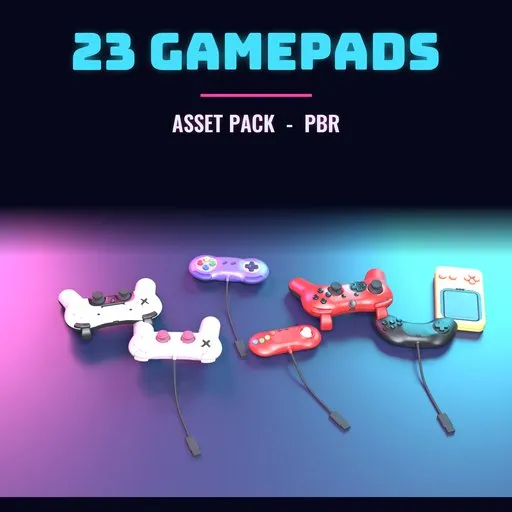
Gamepad Asset Pack – 23 Game-Ready PBR Gamepads
 add-on
23 different game-ready PBR gamepads: install once, then drag them from the Asset Browser or add them with Shift+A. Retro, arcade stick, console, pro and handheld designs.
Explore all my Blender addons
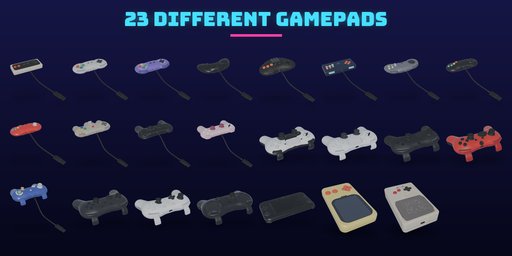
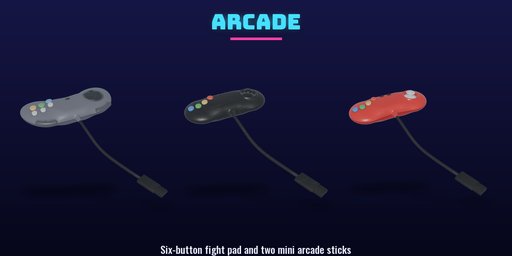
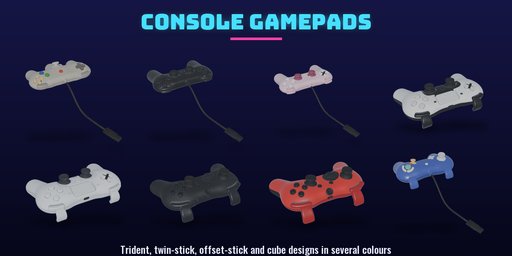
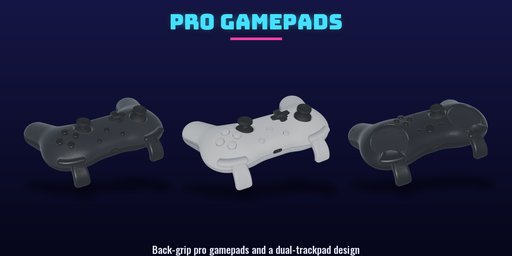
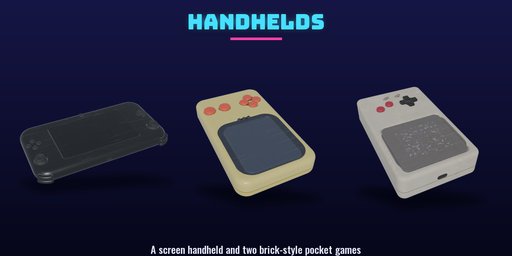
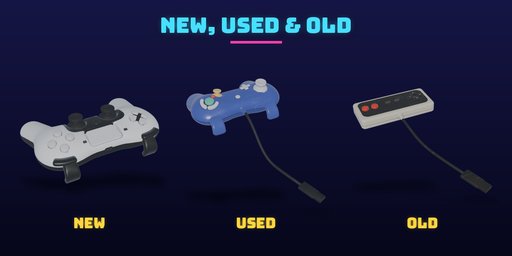
23 different gamepads, every one a different design, ready to drop into your scenes: retro bricks and ovals, arcade sticks, twin-stick console gamepads, pro gamepads with back grips and handhelds.
Install it like any extension. The gamepads then show up in the Asset Browser under their own library, and in the Add menu (Shift+A > Gamepads), which places the picked gamepad at the 3D cursor.
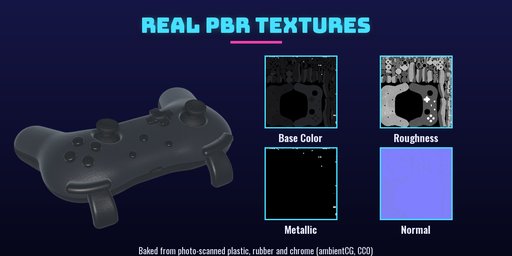
Each gamepad is a clean, real-world scale mesh with one non-overlapping UV map and one PBR material (Base Color, Roughness, Metallic, Normal) built from packed image textures, so it also exports cleanly to game engines. It rests on the floor with its origin at the centre of the footprint.
What is inside
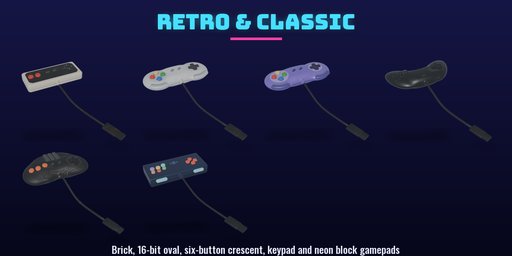
- Retro and classic: Retro Brick, 16-Bit Oval, Purple Oval, Six-Button Crescent, Keypad, Neon Block
- Arcade: Six-Button Fight Pad, Mini Arcade Stick, Red Mini Arcade Stick
- Console: Trident, Classic Twin-Stick (two colours), Modern Twin-Stick (two colours), Offset-Stick (two colours), Indigo Cube
- Pro: Pro Gamepad with Back Grips, White Pro Gamepad, Dual-Trackpad Gamepad
- Handheld: Handheld Console, Yellow Brick Handheld, Pocket Brick Handheld
Details
- Real photo-scanned plastic, rubber and metal textures, 2K, packed into the .blend
- New, used and old looks with wear baked in
- Real-world meters, resting on the floor, front toward -Y
Works in Blender 4.2 and newer (tested on Blender 4.2, 4.5 and 5.2 LTS).
How to use
- Edit, Preferences, Get Extensions, the arrow menu at the top right, Install from Disk, and pick the downloaded zip (do not unzip it).
- Add a gamepad with Shift+A, Gamepads, or open an Asset Browser and pick the Gamepad Asset Pack library, then drag a gamepad into the scene.
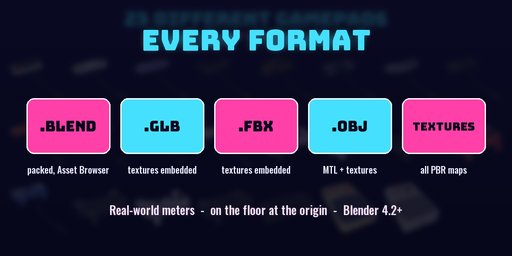
- Each added gamepad is a normal collection you own: move it, edit it, or export it to GLB/FBX for a game engine.
Disabling or uninstalling the extension removes its Asset Library entry again.
FAQ
How do I add a gamepad?
Shift+A, Gamepads, then pick one: it is placed at the 3D cursor. Or open the Asset Browser, choose the Gamepad Asset Pack library and drag a gamepad in.
Can I use the gamepads in a commercial game or render?
Yes. Use them in personal and commercial renders, animations, games and apps. You may not resell or share the models or textures themselves as assets.
Do the materials work outside Blender?
Yes. Every gamepad uses one standard metal/roughness PBR material built from image textures, which glTF and FBX export read directly.


