 Models
 Materials
 HDRIs
 Scenes
 Brushes
 Node Groups
 Printables
 Creators
 Creations
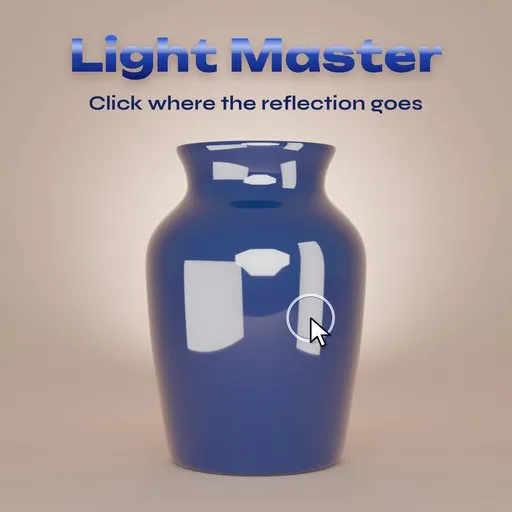
Light Master – Click-to-Place Lighting & Animated Gobos for Blender
 add-on
Point at a surface and a light lands so its reflection sits right there, auto-sized and auto-powered. Add animated gobos (windows, blinds, leaves, caustics) in Cycles and EEVEE.
Explore all my Blender addons
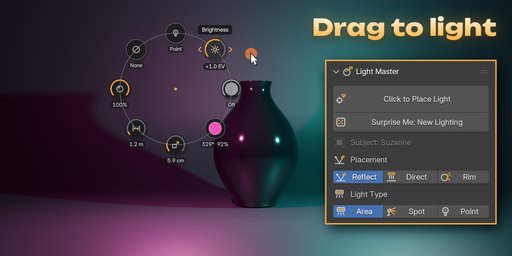
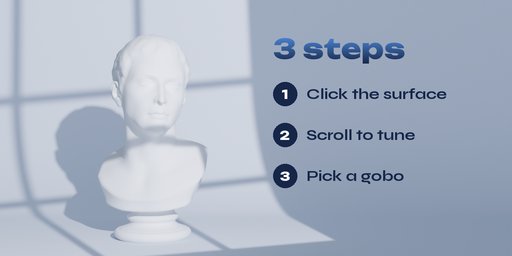
Light Master puts a light exactly where you want its reflection. Point at any surface in the viewport and the light follows your mouse: its highlight lands right under the cursor, already at a sensible distance, size and brightness for that object. Click to keep it. Scroll to change brightness, hold Shift for size and Ctrl for distance, and the subject stays equally bright as the light moves.
Select a placed light and a ring of round controls appears around it in the viewport: brightness, temperature, color, size, distance, cone, gobo, reflection shape and more. Press a control and drag left, right, up or down, and the light changes live. Click a control for exact values. The sidebar stays short: place a light, Surprise Me, one-click setups and the list of your lights.
Three placement modes cover the whole job. Reflect places a highlight on glossy surfaces such as car paint, bottles, chrome or eyes. Direct shines the light straight onto the clicked spot for a key light. Rim puts the light behind the subject so it grazes the edge you click.
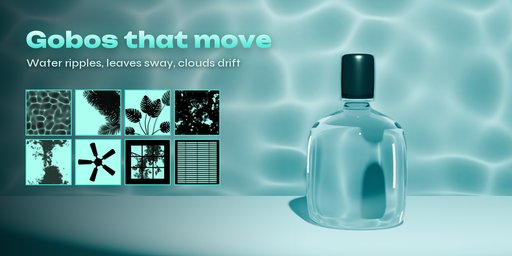
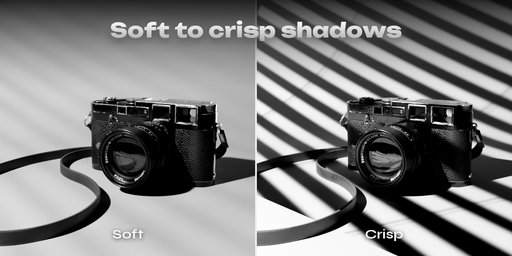
Every light can cast a gobo, the shadow pattern lighters put in a beam for realism. The built-in library has windows, blinds, shutters, fences, palms, monstera, tree canopies, water caustics, clouds and stage patterns, and many of them move: leaves sway, caustics ripple, clouds drift and fans turn, looping over your timeline. Sharpness slides the pattern card along the beam from a soft dappled shadow to a crisp projection, just like a real cookie on set. Gobos work in both Cycles and EEVEE, on area, spot and point lights.
Features
- Click to place: the reflection, light or rim lands where you click, on smooth curved surfaces too
- Automatic distance, size and power from the object's size, with Keep Brightness when moving
- Viewport control ring around the selected light: drag to change brightness, temperature, color, size, distance, cone, gobo and reflection shape
- Live controls while placing: brightness, size, distance, roll, sharpness, mode, light type and gobo
- Gobo library of windows, blinds, foliage, water, sky and stage patterns, many of them animated loops
- Gobo sharpness, size, angle, offset, strength, speed and hold frame
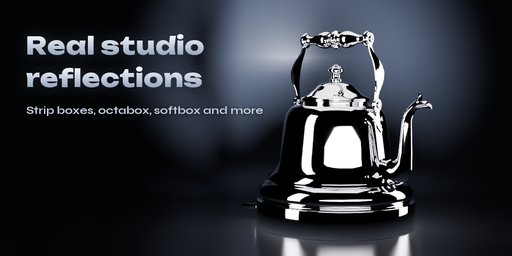
- Reflection shapes for Cycles: softbox, strip box, octabox, ring, umbrella, beauty dish and more
- Color temperature in Kelvin, reflection and diffuse amounts, light only the subject
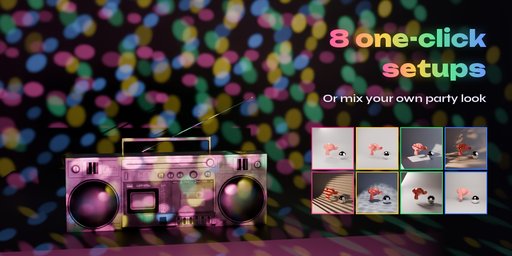
- One-click setups: Three-Point, Product Strips, Window Daylight, Golden Hour Leaves, Noir Blinds, Pool Caustics and more
- Surprise Me builds a complete new key, fill and rim lighting with a colour mood around your subject
- Solo a light, False Color exposure check and a list of every placed light
- Each light keeps its own pattern card, which never shadows other lights
Requires Blender 4.2 or newer. Tested on Blender 4.2, 4.5 and 5.2 LTS.
How to use
Installation
In Blender open Edit, Preferences, Get Extensions, then use Install from Disk and pick the reflection_light_placer zip.
Placing a light
- Open the Light Master tab in the 3D viewport sidebar (N) and press Click to Place Light, or press Ctrl+Shift+L in the viewport, or use Shift+A, Light, Reflection Light.
- Move the mouse over your object: the light follows so its reflection (Reflect mode), its light (Direct) or its rim (Rim) lands under the cursor. Use Rendered view to see it live.
- Scroll for brightness, Shift+scroll for size, Ctrl+scroll for distance, Alt+scroll to roll, Ctrl+Shift+scroll for gobo sharpness. On a trackpad swipe two fingers up and down, or use the + and - keys with the same modifiers.
- Tab or 1, 2, 3 switch Reflect, Direct and Rim. T switches Area, Spot and Point. The < and > keys step through gobos, H turns the gobo off, K and Shift+K make the light warmer or cooler, I solos it.
- Click to keep the light, Shift+click to keep it and place another, right-click or Esc to cancel.
Editing
Select a placed light and a ring of controls appears around it in the viewport. Press a control and drag left/right or up/down to change brightness, temperature, color, size, distance, cone, gobo, reflection shape or reflections; Shift drags finely, Ctrl snaps, Esc or right-click cancels. Click a control for its exact fields. The Light control holds Light Type, Placement, Re-aim, Solo and Delete. Turn the ring off in the viewport Overlays menu (Light Master Controls). Moving a light by hand keeps it aimed at its target.
Surprise Me
Builds a new key, fill and rim lighting with a colour mood around the selected objects, or the object you lit last. Pressing it again replaces the previous surprise; lights you placed yourself stay.
Gobos
Drag the Mask control on the ring to step through patterns, or click it to pick a category and a pattern from the gallery. Sharpness moves the pattern card toward the subject for crisper shadows. Moving patterns play over the timeline; turn Animate off to hold one frame.
FAQ
Which Blender versions are supported?
Blender 4.2 and newer. It is tested on Blender 4.2, 4.5 and 5.2 LTS.
Do gobos work in EEVEE?
Yes. Gobos are shadow-only pattern cards in front of the light, so they work the same in Cycles and EEVEE, on area, spot and point lights. Reflection shapes such as softboxes are light textures and show in Cycles only.
Do I need to download the gobo library?
No. Every pattern and light texture ships inside the addon, so it works offline right after installing.
Will my scene still render on another computer or a render farm?
Yes, as long as the addon is installed there. When a file opens, the addon points the gobo images at its own library again, so moved install folders are fixed automatically.


