
 Models
 Materials
 HDRIs
HDRIs
 Scenes
 Brushes
 Node Groups
 Printables
 Creators
 Creations
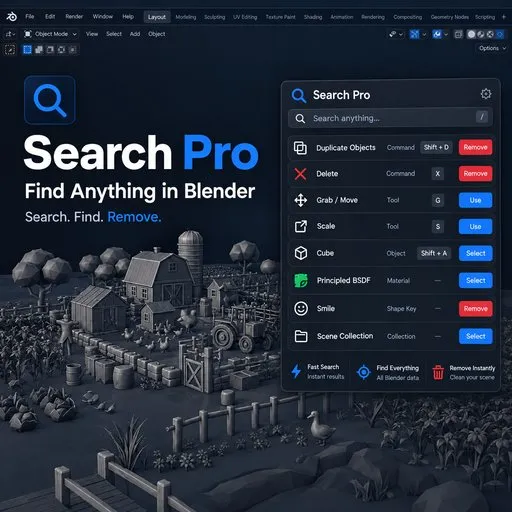
Universal Search - Spotlight-Style Search for Commands, Data, Nodes & Settings
 add-on
search everything in Blender from one box: operators, tools, menus, shortcuts, objects, modifiers, materials, nodes, animation data, preferences, and add-ons. Universal Search replaces Blender's built-in menu search with a ranked, Spotlight-style
Stop hunting through menus. Just press F3.
Blender has thousands of operators, settings, and data types spread across editors, panels, and preferences. If you don't remember the exact menu path, you either dig through nested submenus or give up and use the mouse. Blender's built-in menu search (F3) only searches operator names, so it misses your objects, modifiers, materials, nodes, and most settings entirely.
Universal Search replaces that F3 search with one search box that covers almost everything in Blender: commands, tools, shortcuts, current-file data, and interface settings. Type a few letters, see a ranked list, hit Enter, done.
What it actually searches
Universal Search indexes four kinds of content and ranks all of them together:
Commands — operators, tools, menu actions, and keyboard shortcuts
Current-file data — objects, collections, meshes, curves, grease pencil, modifiers, constraints, vertex groups, shape keys, UV maps, materials, images, textures, actions, armatures, bones, drivers, F-curves, NLA tracks, particle systems, physics, and more
Nodes — geometry nodes, shader nodes, compositor nodes, and node groups, sorted by which node family they belong to
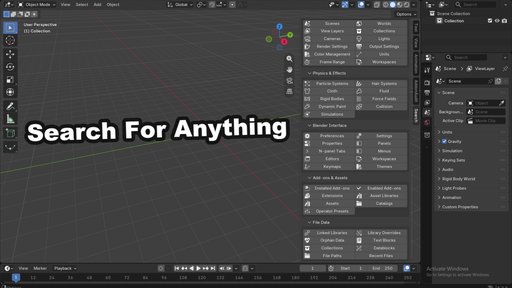
Blender interface — preferences, editors, workspaces, themes, keymaps, add-ons, extensions, and asset libraries
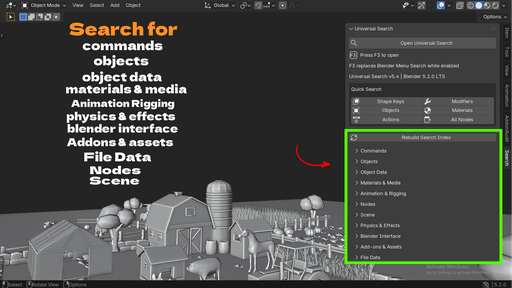
If it exists in your current file or in Blender's interface, Universal Search can find it. That is not marketing shorthand — the add-on ships a taxonomy of over 90 distinct search categories, grouped into 11 sections you can filter by (Commands, Objects, Object Data, Materials & Media, Animation & Rigging, Nodes, Scene, Physics & Effects, Interface, Add-ons & Assets, File Data).
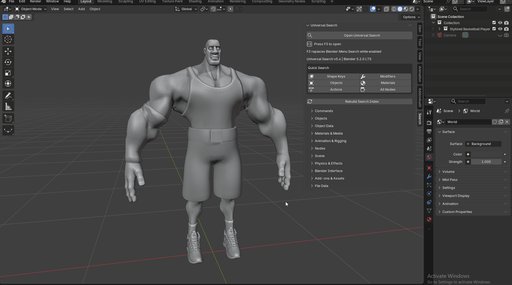
Search that understands typos and abbreviations
Universal Search does not just check if your text appears somewhere in a name. It ranks results the way a good search engine would:
Exact match
Prefix match (what you typed starts the result name)
Substring match anywhere in the name
Token match (each word you typed matches the start of a word in the result)
Fuzzy subsequence match, for abbreviations and typos — type "sbdv" and still land on "Subdivision Surface"
Results also weigh in metadata (description, operator ID, shortcut, menu location) when the name alone isn't a strong match, so a search for a shortcut key or an operator ID still finds the right result. The whole ranking pipeline is written to stay fast on repeated keystrokes: the searchable text is normalized once and cached, so typing the second and third letter of a query does not re-scan your whole file.
See exactly how to reach it manually
Every result that has a keyboard shortcut shows the actual key from your current keymap, not a hardcoded default, so if you have remapped your shortcuts, Universal Search reflects that. For results without a direct shortcut, it shows the manual path instead, for example mesh.primitive_cube_add resolves to Add > Mesh > Cube, using a semantic access-path map that fills in the gaps Blender's own keymap data does not expose. You get either "press this key" or "here's where it lives," never a dead end.
Act on results directly
Search results are not just links to menus. Selecting an object result selects and frames it in the viewport. Data-block results that represent real file content, such as modifiers, materials, node groups, or vertex groups, get a remove action with a confirmation prompt, so you can clean up unused data without leaving the search box. Static commands, settings, and menu items intentionally do not get a delete button, since removing those would not make sense.
Two ways to search
F3, anywhere — Universal Search takes over Blender's F3 shortcut while the add-on is enabled, so your existing muscle memory keeps working. Disable the add-on and F3 goes back to Blender's default menu search, no side effects left behind.
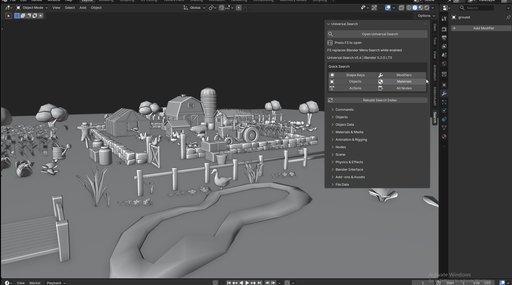
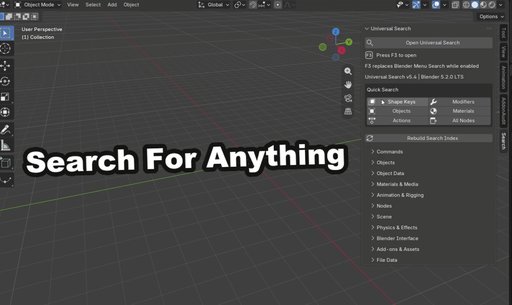
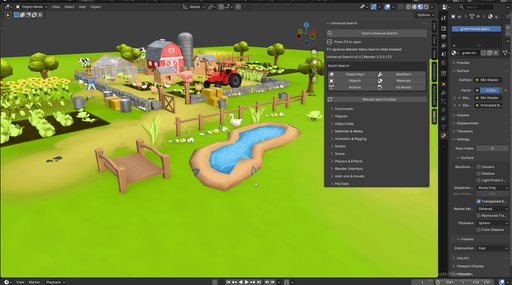
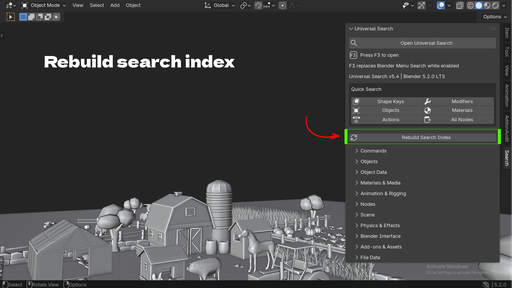
3D View Sidebar (N-panel) → Search tab — a dedicated panel with quick-search buttons for common categories (Shape Keys, Modifiers, Objects, Materials, Actions, Nodes) plus a full list of category filters and a manual index rebuild button, for when you want to browse by category instead of typing.
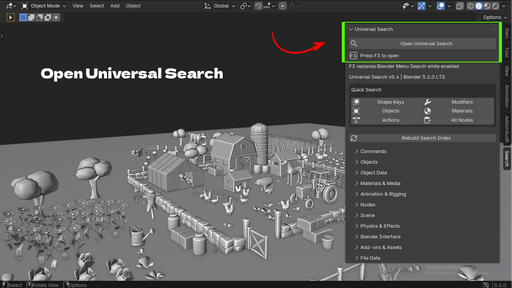
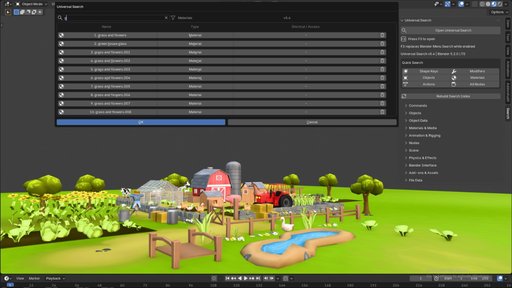
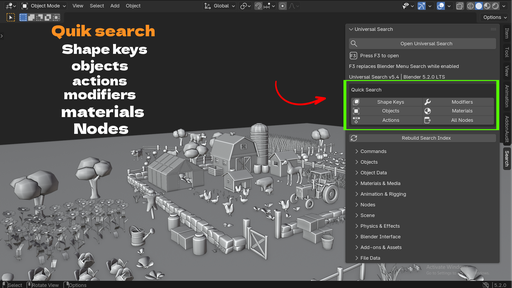
Built for speed, not just breadth
Searching everything in a Blender file could easily mean lag on every keystroke. Universal Search avoids that by preparing its search corpus once (name, compact name, and tokenized text) and caching it, so the first character you type is cheap and repeated typing does not re-normalize text from scratch. Heavy caches also warm up shortly after the add-on registers, not during your first F3 press, so opening search for the first time in a session still feels instant.
Workflow Benefits
Fewer trips through nested menus. Deeply buried settings like Color Management, Unit Settings, or File Paths are one search away instead of three menu levels deep.
Faster modifier and node cleanup. Search "cloth" or "subdivision" across the whole file to jump straight to the modifier, instead of clicking through every object in the Outliner.
Shortcut discovery without leaving the viewport. Forgot the hotkey for Shade Smooth or Snap? Search it and see the real key bound in your keymap.
Faster onboarding for new Blender users. Instead of memorizing menu locations, new users can search in plain language and see where a command actually lives, which builds menu familiarity over time instead of replacing it.
Safer data cleanup. Removing an orphaned material slot, unused vertex group, or stray node group is a search plus a confirmed delete, not a manual audit of every object.
Less context switching for riggers and animators. Actions, drivers, F-curves, NLA tracks, and bones are all searchable by name, so you can jump to a specific driver or action without opening the Dope Sheet first.
Use Cases
Generalists and freelancers juggling many file types who don't want to memorize every menu path across modeling, shading, and animation workflows.
Riggers and animators who need to jump to a specific driver, action, bone, or NLA strip by name in a complex rig file.
Technical artists working across geometry nodes, shader nodes, and compositor nodes who want one search box instead of three separate node editors to hunt through.
Studio and pipeline leads cleaning up scene files, removing orphaned modifiers, materials, or node groups before handoff or archiving.
New Blender users coming from other DCC tools with a global search habit (Spotlight, Windows Search, VS Code's Command Palette) who want the same pattern in Blender.
Add-on power users with many add-ons and extensions installed, who need to quickly find and jump to a specific add-on's preferences or an installed extension.


