 Models
 Materials
 HDRIs
 Scenes
 Brushes
 Node Groups
 Printables
 Creators
 Creations
Credit Manager Pro
 add-on
Track author, license and source of every asset in your .blend. Blendkit asset data is filled in automatically, whole collections are credited in one click and missing licenses are flagged. Export as HTML, Markdown, CSV or JSON. Blender 5.0–5.2.
Credit Manager Pro - Documentation
Version 2.1.1 · Blender 5.0 – 5.2 LTS
Overview
Credit Manager Pro is a professional Blender add-on designed to help artists, studios and freelancers track and manage asset credits and licenses. Whether you're working with marketplace assets, client projects or building a portfolio, Credit Manager Pro keeps all your attribution and licensing information organized in one place – stored right inside your .blend file.
Assets downloaded from Blendkit are recognized automatically: author, license and a link to the asset page are filled in for you. Assets made of many parts are credited as a whole collection with one click, and a built-in check shows which entries still need a verified license.
Installation
Requirements
Blender 5.0 – 5.2 (5.2 LTS recommended – multi-line text fields need 5.2)
No additional dependencies required
Installation Steps
Download credit_manager_pro-2.1.1.zip – do not unzip it
Open Blender and go to Edit → Preferences → Get Extensions
Click the dropdown arrow (top right) and choose Install from Disk…
Select the ZIP file – the add-on is enabled automatically
Upgrading
From 2.1.0: install the new ZIP the same way – it replaces the old version
From 2.0: remove the old version first (Preferences → Add-ons → Credit Manager Pro → Remove), then install the new ZIP
Your credit lists are stored in your .blend files and are kept
Accessing the Add-on
In the 3D Viewport, press N to open the sidebar
Open the Credits tab
Interface Overview
Main Panel: Credit Manager Pro
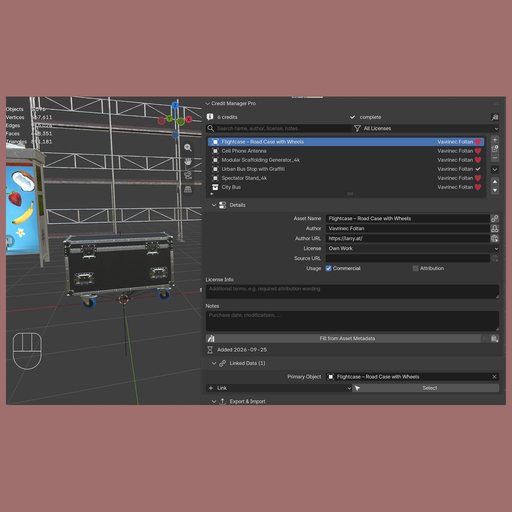
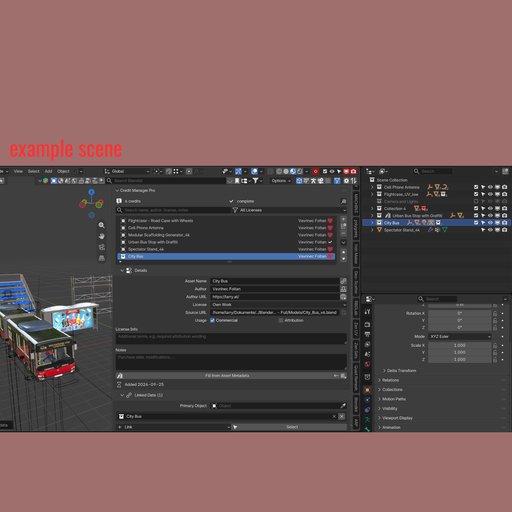
Everything happens in one panel. Below the list are three collapsible sections: Details, Linked Data and Export & Import. Collections can also be credited from the Outliner's right-click menu.
Header
Credit counter – number of entries; "N to check" appears when entries need attention (click it for a list)
Clipboard button – copies the credits as Text, Attribution Lines or Markdown
Search & Filter
Search field – finds name, author, license, source and notes while you type
License filter – shows one license type only
List filter (small arrow below the list) – sort by name, author, license or date, reverse order, Only Issues
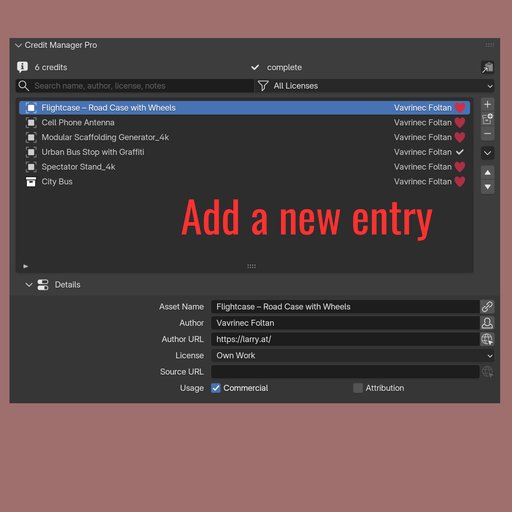
Credit List
Shows name, author and license icon, a marker for non-commercial licenses and a warning when an entry needs attention
Double-click a name to rename it in place
Action Buttons
Add (+) – new entry for the active object, or an empty entry
Add Collection – one entry for the collection you clicked in the Outliner
Remove (–) – deletes the selected entry
Move Up / Down – the list order is the export order
Menu (▾) – batch tools, Duplicate, Copy from Previous, Bulk Apply, Move to Top / Bottom, Check Credits, Re-link Missing Data, Clear All
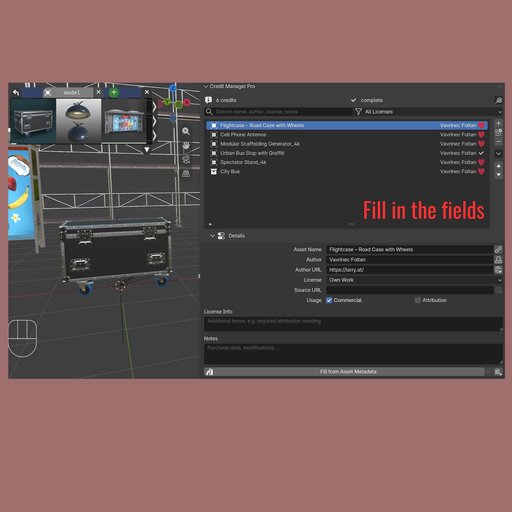
Details Section
Asset Name
Author and Author URL – the Own Work button fills in your own name and website
License
Source URL – opens in the browser
Commercial Use and Requires Attribution
License Info and Notes – multi-line
Date Added – automatic
Linked Data Section
Primary Object plus any number of additional references
Link menu – Selected Objects, Active Material, Active Collection, Scene World, or any object, collection, material, image, world, node group or linked library
Select – selects and frames all objects of the entry in the viewport
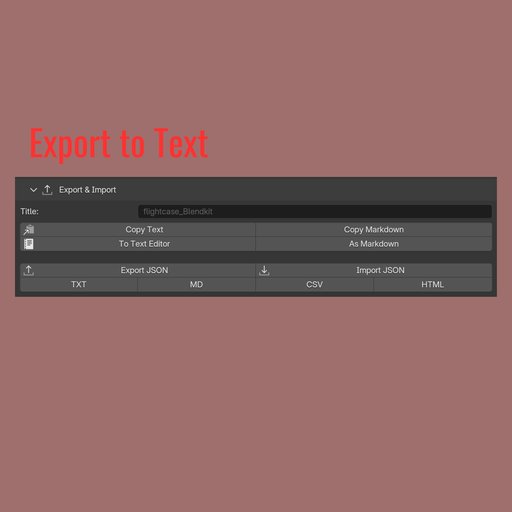
Export & Import Section
Title for the export heading
Copy Text / Copy Markdown, To Text Editor
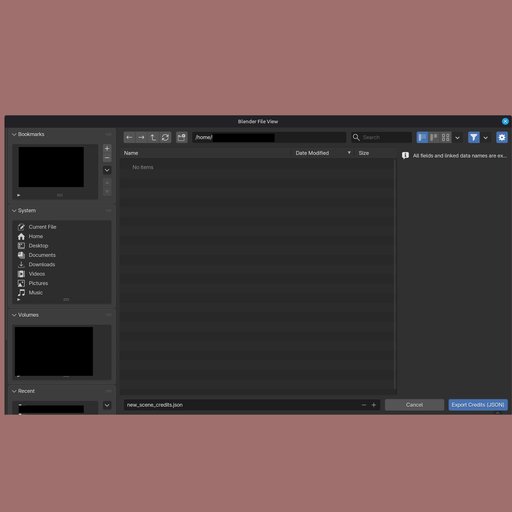
Export JSON / Import JSON
Export TXT / MD / CSV / HTML
Core Features
Adding Credits
Single Credit Entry
Click the object you want to credit (optional)
Click Add (+)
The object is linked, its name is used and available metadata is filled in
Add Credits from Selection – perfect for asset packs
Select the objects and choose Add Credits from Selection in the menu (▾)
One entry per asset – numbered duplicates (Chair, Chair.001 …) and collection instances are grouped
Objects that already belong to an entry are skipped, including everything inside a credited collection
Add Credit from Collection – for assets made of many parts
Click the asset's collection in the Outliner
Click the collection button next to the list, or right-click the collection in the Outliner → Add Credit (Credit Manager)
One entry covers every object in it, child collections included
If everything is parented to one object (e.g. an empty), it becomes the Primary Object
Several collections selected in the Outliner get one entry each
More Batch Tools
Add Credits from Linked Libraries – one entry per linked .blend file
Add Credits from Images – textures and HDRIs, grouped by folder
Example Use Case
Import 20 furniture models from the same creator
Select all 20 objects and run Add Credits from Selection
Fill in the first entry, then use Bulk Apply for the rest
All 20 credits are complete in about two minutes
Automatic Metadata
Blendkit assets – author, author profile, license and a link to the asset page
Blender asset metadata (Mark as Asset) – author, license, copyright and description
Linked and appended assets – the library path as source
Runs automatically when entries are created, or on demand with Fill from Asset Metadata
License Management
License Type – 16 options
Royalty Free (Marketplace)
Editorial Use Only
CC0 1.0 (Public Domain)
CC BY 4.0
CC BY-SA 4.0
CC BY-ND 4.0
CC BY-NC 4.0
CC BY-NC-SA 4.0
CC BY-NC-ND 4.0
GPL
MIT
Apache 2.0
BSD
Own Work
Custom / Other
Unknown – to be checked
Choosing a license sets Commercial Use and Requires Attribution automatically (except for Custom and Unknown). Both flags can always be changed by hand.
Copy & Bulk Operations
Copy from Previous – copies author and license data from the entry above
Bulk Apply Author Info – applies author and license data to a range of entries, optionally only into empty fields
Duplicate – copies an entry including its linked data
Compliance Check
Entries are flagged when the license is unknown, a custom license has no details, attribution is required but the author is missing, or linked data was deleted
Check Credits lists all flagged entries
The Only Issues filter lets you work through them
Re-link Missing Data reconnects deleted data by name after an undo or re-import
Import & Export
HTML – styled credit page with clickable links, license badges, light and dark mode
Markdown – for README files, product pages and wikis
Attribution Lines – one line per asset, ideal for descriptions
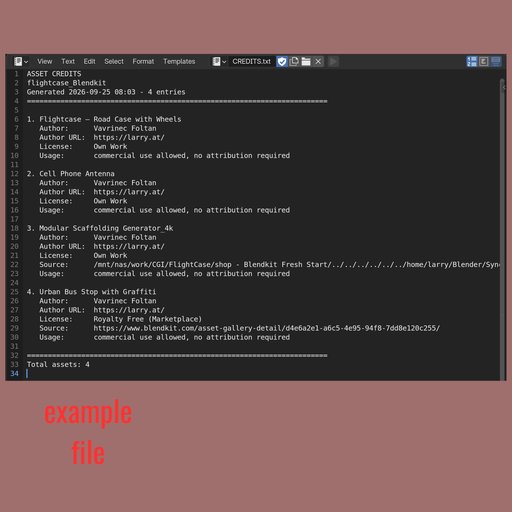
TXT – plain text documentation
CSV – spreadsheets (UTF-8, semicolon or comma)
JSON – complete backup and exchange between projects
Import JSON – merge or replace, also reads files from version 2.0
Clipboard and Text Editor – paste anywhere or keep the credits inside the .blend
Options – group by author, include notes, linked data and dates
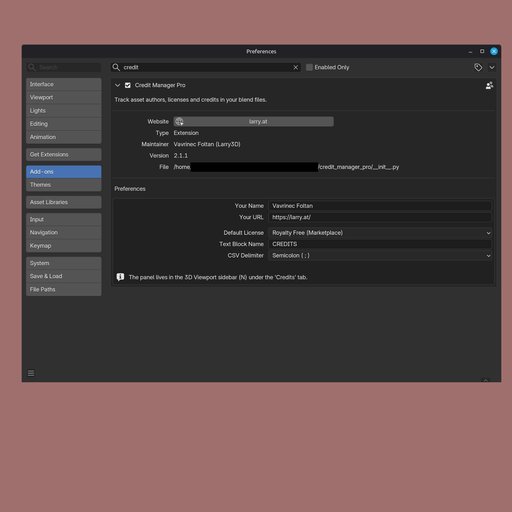
Preferences
Your name and URL for the Own Work button
Default license for new entries
Text block name and CSV delimiter
Credits
Author: Vavrinec Foltan (Larry3D) – https://larry.at
Version 2.1: Blender 5.2 update
Version 2.1.1: credits for whole collections
Support: [email protected]
License: GNU GPL v3