
 Models
 Materials
 HDRIs
HDRIs
 Scenes
 Brushes
 Node Groups
 Printables
 Creators
 Creations
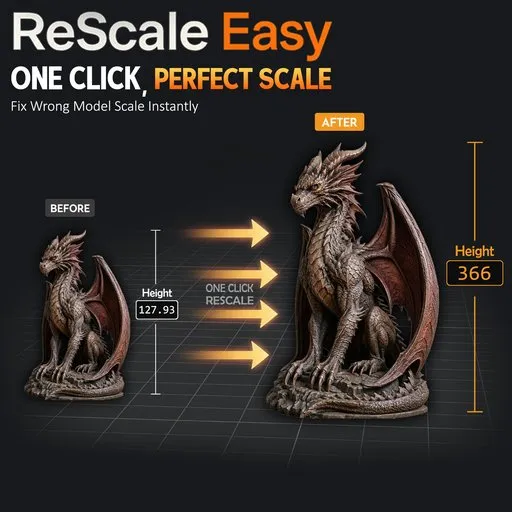
ReScale Easy — One Click, Perfect Scale
 add-on
ReScale Easy fixes inconsistent 3D model scales in Blender with one click.
Match any model to a reference size using height-based scaling or exact X/Y/Z matching.
Match any model to a reference model with a single click, whether you're working ,...
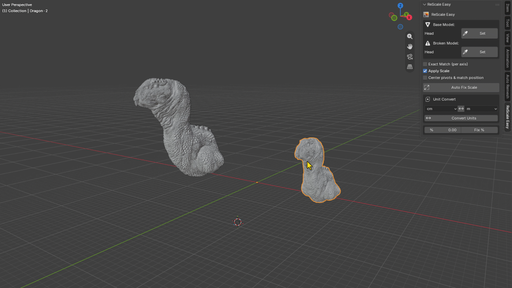
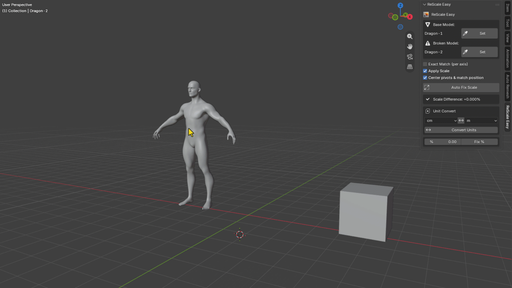
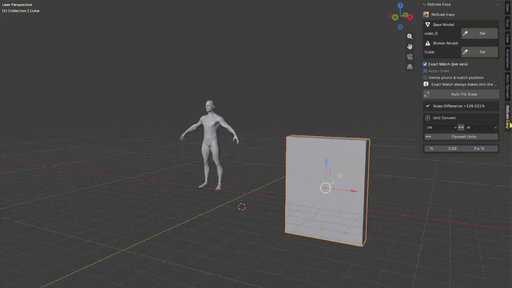
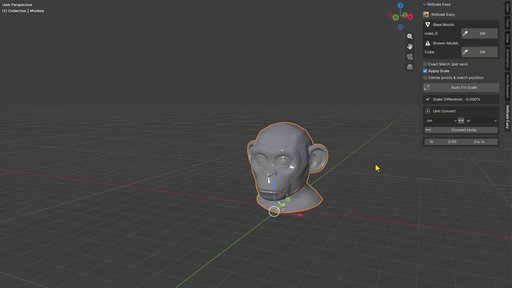
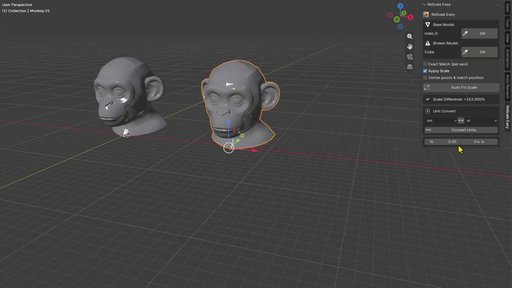
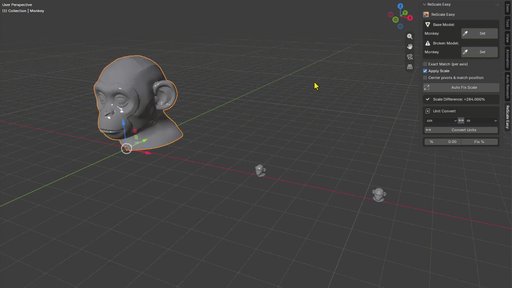
ReScale Easy — Product Overview
Short Description
Match your model’s scale to a reference model with one click, accurately and without guesswork, regardless of the format (FBX, OBJ, etc.).
A Precise and Smart Solution for Automatically Fixing 3D Model Scale in Blender
The Story Behind ReScale Easy
The idea for ReScale Easy came from a real freelance project. It was a base-sculpt project that had been handed over by a client. Another artist had previously worked on the project but had stopped for various reasons.
**While reviewing the delivered files, it became clear that the scale of the models was completely inconsistent, and there was no quick or reliable way to correct it.
That experience led to the core idea behind this add-on: a tool that could automatically solve this common problem.
The first version of ReScale Easy was born from that need. Over time, through continuous testing, trial and error, and practical use in real projects, more useful features were added.
In short, ReScale Easy was built from a real-world problem and practical production experience, rather than simply being a theoretical concept.
**
Who Is ReScale Easy For?
ReScale Easy is designed for artists and studios who frequently deal with inconsistent scale between 3D models.
Its main use cases include:
Taking Over Incomplete Projects: When receiving a project from another artist and the models are not properly scaled relative to each other or to the project standard.
Character Modeling & Sculpting: When importing a Base Mesh with an incorrect scale and needing to quickly match it to a reference model.
3D Scans: Scanned models often come with different measurement units and scales than the working scene.
Kitbashing & Asset Combining: When combining multiple models from different sources that use different measurement units, such as meters, centimeters, or millimeters.
Game Asset Preparation: Before exporting assets to game engines such as Unity or Unreal Engine, where consistent scale between assets is essential.
Architectural Visualization (ArchViz): When using downloaded furniture or other assets that do not match the real-world dimensions of the scene.
3D Printing: To ensure that the final model matches the desired physical dimensions before slicing and printing.
Team & Freelance Collaboration: In projects where multiple people work with shared files, inconsistent scale can become a common problem. ReScale Easy fixes it in seconds.
Special Use Case: Restoring Real-World Scale After Editing an Incomplete Model
One of the most useful scenarios for ReScale Easy is when you receive a partially completed Base Mesh and need to make extensive changes to it, such as sculpting, editing, or adding details.
In many cases, differences in measurement units between software applications can cause the model's scale to become inconsistent with its intended real-world dimensions, whether the model is being prepared for 3D printing or needs to fit correctly into its intended environment.
How Does It Work?
ReScale Easy automates the process:
Select a Base Model with the correct dimensions, select the Broken Model with the incorrect scale, and with a single click, ReScale Easy scales the Broken Model to match the reference model exactly.
Key Features
Auto Fix Scale — Automatically matches the scale of the Base and Broken models based on their Z-axis height. No additional manual adjustment is required.
Exact Match — When you need all three axes, X/Y/Z, to match independently and precisely rather than matching only the height, enable Exact Match.
Center Pivots & Match Position — Centers the pivots of both models and places the Broken Model directly on top of the reference model.
Unit Convert — Convert between meters, centimeters, millimeters, and inches, with a convenient Swap button for quickly switching the From and To units.
Fix by % — Manually increase or decrease the scale of a selected model by a specific percentage.
Live Progress Bar & Scale Difference — Displays a live progress bar during the operation and shows the percentage of scale adjustment applied after completion.
Compatibility
ReScaleEasy_Extension.zip → Blender 4.2 and newer
Install through Blender's Extensions Platform.
User Guide
1. Installation
Download the appropriate package for your Blender version:
For Blender 4.2 and newer, use the Extension package.
Go to:
Edit > Preferences > Add-ons > Install from Disk
Or, for the Extension version:
Edit > Preferences > Get Extensions > Install from Disk
Select the downloaded ZIP file and enable the add-on.
- Open the Panel
In the 3D Viewport, press N to open the Sidebar.
Then go to the ReScale Easy tab.
- Select the Base Model
Select the model in the scene that has the correct dimensions.
Then, in the ReScale Easy panel, click the Set button next to Base Model.
- Select the Broken Model
Select the model with the incorrect scale.
Then click the Set button next to Broken Model.
- Optional Settings
Exact Match (per axis)
When enabled, the scale of the X, Y, and Z axes is matched independently and precisely to the reference model instead of matching only its height.
This is useful when the proportions of the Broken Model differ from the reference model.
Apply Scale
When enabled, the resulting scale is baked directly into the mesh data and the object's Scale values are reset to 1, 1, 1.
This produces a cleaner result without non-uniform scale values in the Object Properties.
Center Pivots & Match Position
Centers the pivot of each model based on its bounding box and moves the Broken Model to the position of the reference model.
This is useful when you want both models to be the same size and occupy the same position.
Note: When Exact Match is enabled, the scale is always baked directly into the mesh, regardless of whether Apply Scale is enabled.
6. Run Auto Fix Scale
Click the large Auto Fix Scale button.
A progress bar will appear while the operation is running.
If you need to stop the operation, click Stop or press Esc.
After the operation is complete, the result box displays the percentage of scale adjustment that was applied.
- Unit Convert
If you only need to convert the unit of a model, without using a reference model:
Select the From and To units from the dropdown menus.
Use the middle Swap button with the two-way arrow icon to quickly switch the units.
Click Convert Units.
Supported units:
Meters · Centimeters · Millimeters · Inches
- Fix by %
If you simply want to manually increase or decrease the scale of the selected model by a specific percentage:
Enter the desired percentage.
A positive value makes the model larger.
A negative value makes the model smaller.
Click Fix % to apply the change.
Note: If after rescaling you notice in the Item panel that the Y and Z axis values appear swapped between the two models, don't worry — this isn't an issue. Simply apply Rotation on both models (Ctrl+A → Rotation) and it will be resolved.


