
 Models
 Materials
 HDRIs
HDRIs
 Scenes
 Brushes
 Node Groups
 Printables
 Creators
 Creations
Face Layers v1.5 Add-on
 add-on
Layer system for organizing mesh faces .
Face layers extension v1.5 for blender version 4.3 to 5.0.
If you're looking to quickly select or hide faces to gain better control over your complex model while painting, this add-on is perfect for you. But that's not all—it comes with several other powerful features. Let’s dive in and explore!
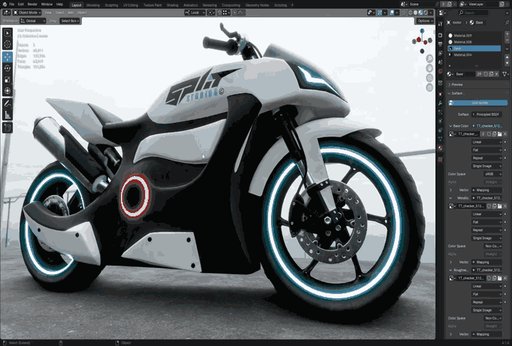
Let’s begin with a quick introduction to showcase the capabilities of the add-on. Face Layers add-on is divided into three main sections: Face Layers, Mesh Data, and Mesh Errors.
Mesh Errors allows you to quickly identify and resolve any errors in your mesh on the spot.
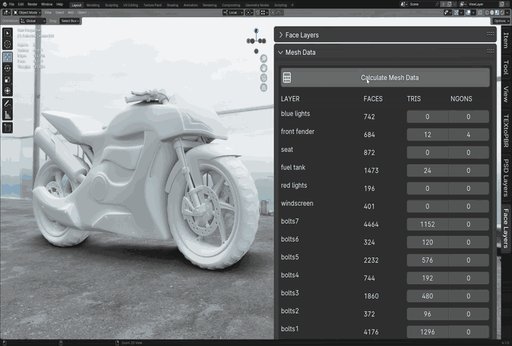
Mesh Data provides a detailed spreadsheet of your model, listing each face layer and showing the number of faces, triangles, and ngons it contains. You can easily select them by simply clicking on the corresponding number.
Face Layers let you create and manage layers with ease. You can select, hide, and lock layers directly on your model, or manage all unlocked layers at once with a single click to select , hide and delete them. Move layers up or down, rename them, assign materials, change colors, and more.
The Materials Panel allows you to quickly create a new single material or choose any material from your Blender file and apply it directly to a face layer by clicking on your model. You can create and assign multiple materials to each face layer with a single click, which is useful for creating ID maps or randomizing colors as we’ll explore later. You also have the option to clear materials, with the choice to either keep them in the file or permanently delete them.
The Palettes Panel is similar to Blender’s default, but with two added features:
Paste Hex Colors: If you've used our PSD Layers add-on before, you’ll recognize this feature. It lets you copy any color palette from the internet in any format and paste it with a single click to create your custom palette.
Randomize Materials Colors: This feature randomizes the colors of each face layer's material, using your palette colors or simply picking random colors if no palette is available.
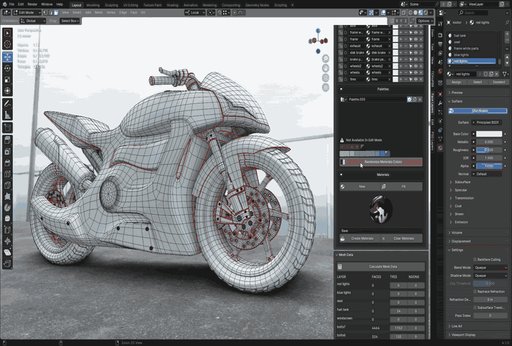
To quickly access your layers and commands, the add-on includes a default pie menu. Simply press Ctrl + Shift + Alt + F to bring it up. You can also customize this shortcut, which we'll cover later.
Lastly, you can fully customize your UI to fit your needs. Show or hide specific attributes, and modify names, materials, colors, and size as you prefer.
That was a quick introduction. Now, let's dive into a detailed demonstration of the add-on.
Let's begin by installing the add-on. First, go to Edit > Preferences, select the Add-ons tab, and click Install. Navigate to the folder where you downloaded the add-on, and select the .zip file without extracting it. Click Install Add-on, then make sure to enable it. Once installed, you’ll see the new Face Layers panel in the 3D viewport, and the add-on will be ready to use.
To create a new layer, simply click Add Face Layer. First, switch to Edit Mode, select the faces you want to add, and then click the plus icon. To remove faces from a layer, select the faces and click the minus icon. You can rename your layer, assign a material, and change its color if desired. For now, let's focus on creating and renaming all the layers, and adding the faces without applying any materials.
After creating layers and assigning corresponding faces, there are a few important points to keep in mind before moving forward:
-
Each mesh object has its own face layers data, so make sure you have the correct object selected before adding or editing layers.
-
New layers are always added to the top of the stack. Be mindful of which layer you're editing, and consider naming your layers to keep things organized.
-
Face layers work specifically on faces, For example with a sphere, you can create multiple face layers, but you can't just create multiple objects from it .. and the same applies to complex characters with multiple assets, that's why you can't replace the add-on by just separating your mesh parts and control them from the outliner.
Now, let's return to our layers and start by checking the mesh for any potential errors. Navigate to the Mesh Errors panel and click Scan Mesh for Errors. If errors are found, clicking on the error count will select and highlight the exact location of the issues. You can then click Delete to remove any loose faces, edges, vertices, or even zero-area faces.
We can also inspect our mesh data. Head over to the Mesh Data panel and click Calculate Mesh Data. The add-on will display each face layer, along with the number of faces, triangles, and ngons it contains. To easily select any of these elements, just click on the corresponding number.
This allows you to easily spot triangles and ngons for editing, and identify which layers have too many faces, so you can optimize your mesh efficiently.
Now, let's return to the Face Layers panel and explore each command in detail.
Select:
When you click the Select button, your mouse cursor will change to a crosshair shape, and the viewport will be locked temporarily. As you hover over your mesh, the add-on will highlight different layers based on the face you're hovering over. The highlight colors have specific meanings:
Green: The layer is not selected yet.
Yellow: The layer is already selected.
Blue: The layer is locked, so it cannot be selected or deselected.
Red: No face layer exists for the faces you're hovering over.
To select a single layer, simply left-click on it. The corresponding layer will also be highlighted in the UI. If you'd like to select multiple layers, press and hold the Alt key while left-clicking on the desired layers. Once you've made your selections, press Right-click, Escape, or Enter to finish.
Hide:
The Hide button functions similarly to the Select button, but instead of selecting face layers, it hides them. As you hover over the mesh, the add-on highlights the layers according to the same color scheme, and you can hide layers by clicking on them.
To hide a single layer, left-click on the layer. If you want to hide multiple layers, hold the Alt key and left-click on all the layers you want to hide. Once you're done, press Right-click, Esc, or Enter to complete the action.
Lock:
The Lock button works similarly to the Select and Hide buttons, but with a key difference: there is no yellow highlight. Instead, the layers are highlighted as:
Green: The layer is unlocked.
Blue: The layer is locked.
When a layer is locked, it cannot be selected or hidden. This is especially useful when using the UI buttons, as it allows you to quickly select or hide layers by clicking and dragging, without affecting the locked layers. Locked layers remain untouched during these actions.
Select All:
The Select All button is a toggle. When clicked, it selects all unlocked face layers. Clicking it again will deselect all unlocked face layers.
Hide All:
The Hide All button functions the same way as Select All, but instead of selecting, it hides all unlocked face layers. Clicking it again will unhide them.
Delete All:
The Delete All button will permanently remove all unlocked face layers with a single click. Be cautious when using this, as it will prompt you for confirmation. After clicking Delete All, a prompt will appear asking if you're sure you want to delete all unlocked face layers. Press OK to confirm or Cancel to abort.
Layer Up and Layer Down Buttons:
To reorder your layers, click the empty circle next to the layer's name. When the circle turns white, it means the layer is now active. You can then move this active layer up or down by clicking the Layer Up or Layer Down buttons. That's all it takes to reorder layers!
If you'd like to simplify the UI further, you can hide these buttons and circles. Simply go to Properties > Scene > Face Layers UI, and toggle the Move Layers checkbox to show or hide them as needed.
Layer Options Overview:
Each layer contains several options that allow you to manage it effectively:
Lock Button:
Left-click to lock the corresponding layer, or left-click and hold to drag across multiple layers to lock them. When locked, the layer will be grayed out, indicating that it cannot be edited.
Active Button:
As mentioned earlier, this button is used to reorder layers. When the circle beside the layer's name is white, the layer is active and ready for reordering.
Name:
To rename a layer, simply click on its name and enter the desired name.
Material:
Left-click on the material field to open a dropdown menu containing all the materials in the file. The first material you select will apply to the entire model, while subsequent materials will affect only the selected face layer.
Default Value:
This is a quick way to edit the material's color. Left-click to bring up a color picker and adjust the material color as needed.
Plus (+) and Minus (-) Buttons:
These buttons are used to add or remove faces from the corresponding layer. They will be grayed out unless you are in Edit Mode. To use them, select the faces you want to modify, then press Plus to add them to the current layer or Minus to remove them.
Select:
This option allows you to select the faces in the current layer. Left-click to select the current layer's faces, or left-click and hold to drag across multiple layers for selection.
Hide:
Functions like the Select button but hides the faces of the chosen layers instead of selecting them.
Delete:
This button deletes the current layer entirely.
Palettes panel:
The Palettes Panel is similar to Blender’s default, but with two added features:
Paste Hex Colors: If you've used our PSD Layers add-on before, you’ll recognize this feature. It lets you copy any color palette from the internet in any format and paste it with a single click to create your custom palette.
Randomize Materials Colors: This feature randomizes the colors of each face layer's material, using your palette colors or simply picking random colors if no palette is available.
Materials Panel:
Creating a New Material:
Click the New button to create a new material. This will generate a standard material and add it to your file, but it will not be assigned to your model yet. You can rename the material by left-clicking on its name and typing the new name.
Assigning a Material to a Face Layer:
To assign a material to a face layer, click Fill. Your mouse cursor will change to a crosshair, and the viewport will temporarily freeze (as seen before). Left-click on your model to assign the material to a single face layer, or hold Alt and left-click to assign it to multiple face layers. When finished, press Right-click, Escape, or Enter to complete the action.
If you want to change the material you're assigning, click on the material itself. This will open a dropdown menu displaying all the materials in your file. Left-click to select a material, and you can assign it to your layers using the Fill process mentioned earlier.
Create Materials for All Face Layers:
To create materials for all face layers at once, click the Create Materials button. You can then select a surface type, choose colors, and add a prefix or suffix to the material names. If you leave the base name unchanged, each material will be named after its corresponding face layer. After clicking OK, the process may take some time. Once complete, each face layer will have its own material assigned. You can then change each layer's color by clicking on the color itself.
Clear or Delete Materials:
To remove materials, click the Clear Materials button. You will have two options:
Clear Materials: Removes the materials from the model, but they will still remain available in your file.
Delete Materials: Permanently deletes the materials from your file.
Pie Menu:
When you install the add-on, a shortcut is automatically created to access the pie menu. To show the pie menu, press Shift + Ctrl + Alt + F. This menu is essential for quickly accessing your layers, making it easy to perform single operations like masking or hiding parts of your model. It’s especially useful when painting your model and needing to swiftly isolate or hide specific areas. You'll likely find yourself using it frequently in your workflow.
If you'd like to change the shortcut, follow these steps:
Go to Edit > Preferences > Keymap.
In the search bar, type Face Layers.
From there, you can assign a new shortcut of your choice.
Customizing the UI:
You can fully customize the UI to suit your workflow. Show or hide specific attributes or adjust the size to your liking. To do this, go to Properties > Scene > Face Layers UI. Here, you can personalize the add-on’s interface to match your needs and simplify it as you prefer.
Finally We hope this add-on enhances your workflow and makes your tasks more efficient. Stay tuned as we’ll be releasing more videos that demonstrate how this and our other add-ons like psd layers can fit into different workflows.


