 Models
 Materials
 HDRIs
HDRIs
 Scenes
 Brushes
 Node Groups
 Printables
 Creators
 Creations
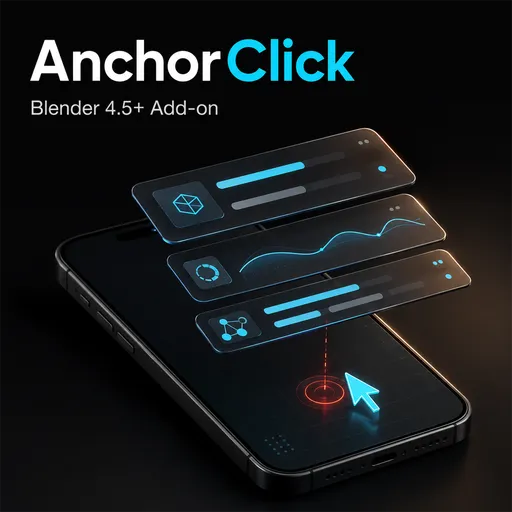
Surface Attach
 add-on
Place and align UI elements on rotated or animated objects in Blender. Click a surface to attach with Child Of, then fine-tune local offsets and orientation.
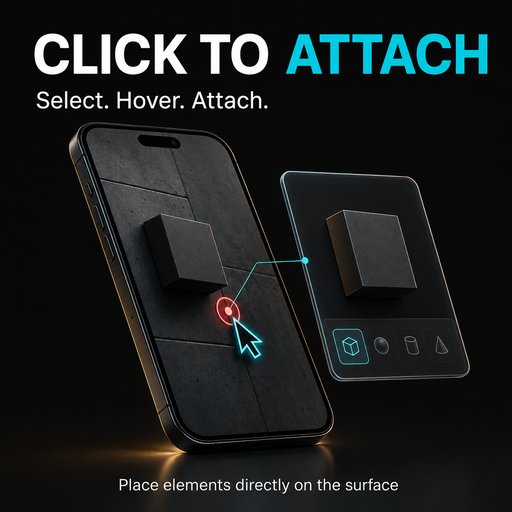
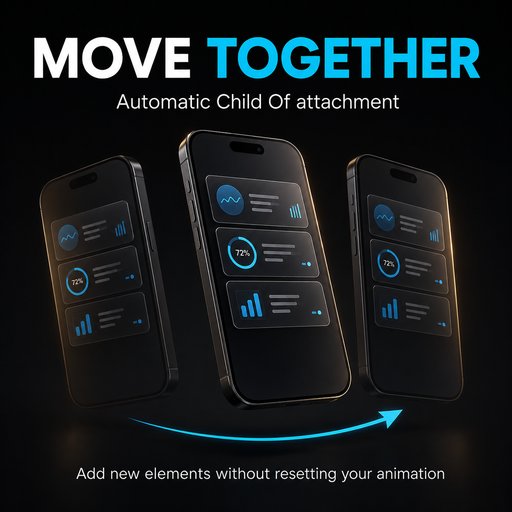
AnchorClick helps you add new elements to an animated scene without resetting the main object's position or rotation. Designed for phone UI animations, product presentations, and motion graphics, it combines interactive surface placement with automatic alignment and attachment.
Select your main mesh, then Shift-select the elements you want to place. Start the placement tool, orbit your view, and use the red hover marker to choose an attachment point. Click to position the elements on the visible side of the surface with an adjustable gap.
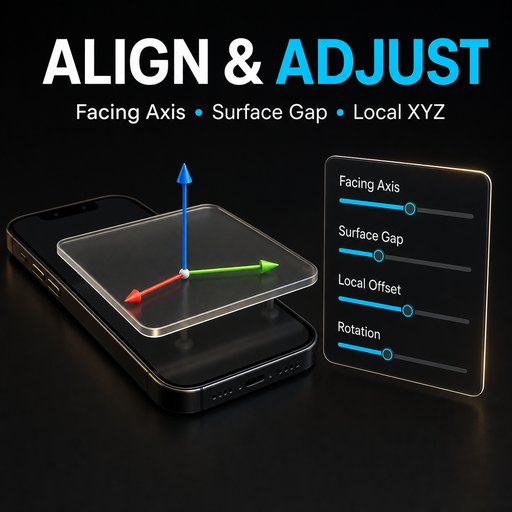
Choose which local axis faces outward. AnchorClick aligns the elements to the clicked surface normal and creates Child Of constraints through a placement anchor that follows the main object. The main object's existing animation can keep running while the newly attached elements follow its transforms.
After placement, adjust local X, Y, and Z offsets or rotate around the surface normal. Blender switches to Local transform orientation automatically, making further adjustments more intuitive.
Features:
- Interactive surface picking with a red placement marker.
- Viewport orbit and zoom during placement.
- Surface-normal alignment with selectable facing axis.
- Adjustable clearance in front of the surface.
- Place multiple elements together while preserving their XY layout.
- Automatic Child Of attachment through a shared anchor.
- Local XYZ offsets and rotation around the surface normal.
- Explicit main-surface selection when click order is unavailable.
Installation
- Download the AnchorClick add-on ZIP file. Do not extract it.
- In Blender 4.5 or newer, open Edit > Preferences.
- Open Get Extensions, expand the menu in the upper-right corner, and choose Install from Disk.
- Select the downloaded ZIP and confirm the installation. Enable the add-on if it is not enabled automatically.
- Return to the 3D Viewport, press N to open the sidebar, and select the AnchorClick tab.
To get started, select your main mesh, then Shift-select the elements and click Pick Surface & Attach. If the selection order is unavailable, select the main mesh and click Set Main Surface before selecting the elements.
Requires Blender 4.5 or newer. New elements should have no existing animation, parent, or constraints. Attachments follow the main object's transforms; they do not track mesh deformation or individual bones.


