 Models
 Materials
 HDRIs
 Scenes
 Brushes
 Node Groups
 Printables
 Creators
 Creations
LAN Render Farm
 add-on
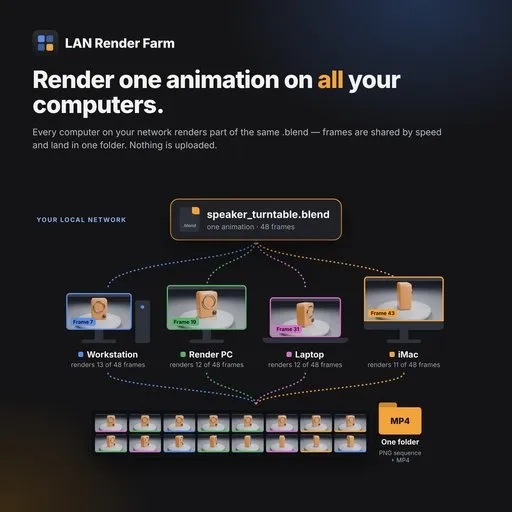
Render Blender animations on all the computers in your studio or home — over your own local network. NDA FILES ARE SAFE !!!
How to use
How to use — from Blender
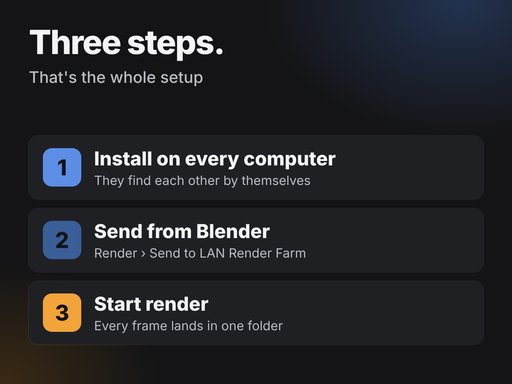
On every computer that should help:
1. Install the add-on: Edit › Preferences › Get Extensions › ⌄ › Install from Disk…, then enable LAN Render Farm.
2. Open Properties › Render › LAN Render Farm and click Start Farm Node. By default the node starts by itself whenever Blender starts.
3. The dashboard opens in its own window. After a few seconds, the other computers appear under Render nodes. Make sure each computer shows Connected.
⚠️ Important: don't close the black console window (the one with text/code in it). That window is the farm node. Closing it stops this computer from rendering. You can minimize it.
On the computer with your scene:
1. Open the .blend and choose Render › Send to LAN Render Farm, or click Send This File to Farm in the panel.
2. The file appears in the dashboard with its render settings filled in, usually within a second.
3. Tick the computers that should help, check the settings and click Start render.
4. Watch progress in the dashboard. Frames and the MP4 are saved in the output folder on this computer.
A computer that only helps render doesn't need Blender's interface open.
Create the icon once:
1. Open Blender on that computer.
2. Go to Edit › Preferences › Add-ons, expand LAN Render Farm and click Create Desktop Launcher.
3. A LAN Render Farm icon appears on the desktop:
- Windows: a shortcut with the farm icon;
- macOS: LAN Render Farm.command;
- Linux: a .desktop file.
4. You can close Blender.
Start from the icon:
1. Double-click LAN Render Farm on the desktop.
2. A small console window opens and the node starts. The dashboard opens in its own window, and the computer joins the farm.
3. ⚠️ Don't close the black console window while the farm works — minimize it instead. Closing it stops the node, and its unfinished frames go to the other computers.
Good to know:
- If the node is already running (for example, Blender started it), the icon just opens its dashboard.
- If something goes wrong, the console window stays open and explains why. The same text is saved in launcher.log in the data folder (Preferences › Open Data Folder).
- The icon keeps working after add-on and Blender updates; there's no need to create it again.
- On Linux, you may need to right-click the icon and choose Allow Launching the first time.
Features
LAN Render Farm
Render one Blender animation on all the computers in your studio or home — over your own local network. Nothing is uploaded.
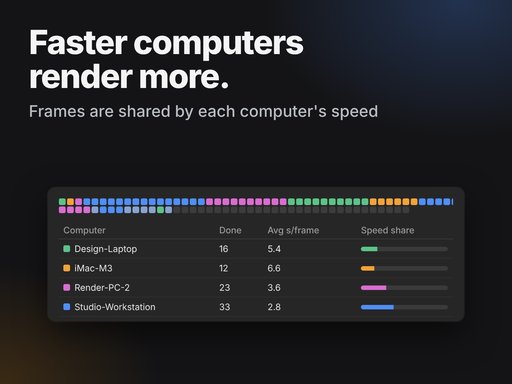
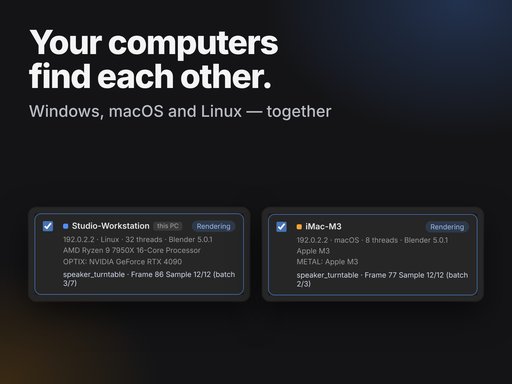
Install the add-on on every computer you want to use. They find each other automatically. Send a .blend from Blender, tick the computers that should help and start. Frames are shared by each computer's speed, and every finished frame lands in one output folder, as a PNG / JPEG / TIFF / OpenEXR sequence, an MP4, or both.
100 % local, private by design
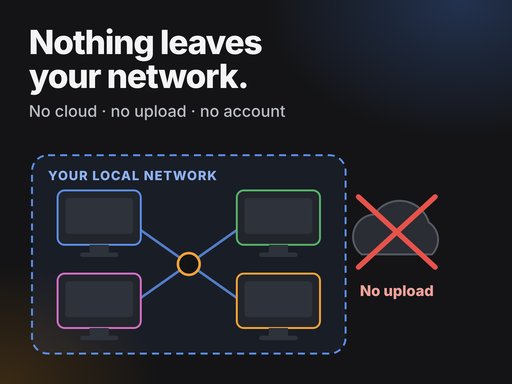
- No cloud, no account, no telemetry. The farm works with the internet unplugged.
- Your .blend files, textures and frames only travel between your own computers, and results are saved on your own disk. This makes it suitable for client work under NDA.
Features
- Automatic discovery. Computers on the same network appear by themselves. There is also a one-click refresh, a network diagnosis and add-by-IP.
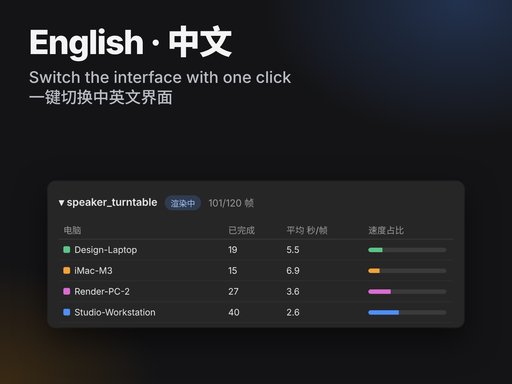
- Speed-based scheduling. Each computer renders a test frame first, then takes batches sized to its speed. Fast computers render more. Near the end, idle computers help finish slow computers' last frames.
- Robust. Frames from a computer that goes offline are reassigned. Jobs are saved and can be resumed after a restart.
- Edit the main render settings before you start:
- engine, samples and frame range
- resolution, render region and frame rate
- output folder, file name and format
- color mode, color depth, compression or quality, and EXR codec
- Dashboard in English or Chinese, plus a panel in Properties › Render.
Queue for the farm
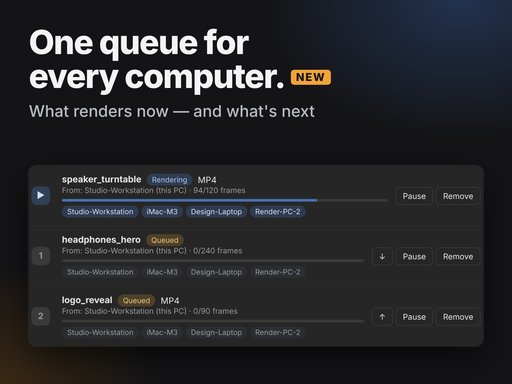
Every computer sees the same queue: what is rendering, what is waiting, which computers work on which file and what each computer renders next. Send several scenes and they render one after another. Reorder, pause or remove files from the computer that started them. A file a computer has already started is finished before it moves on.
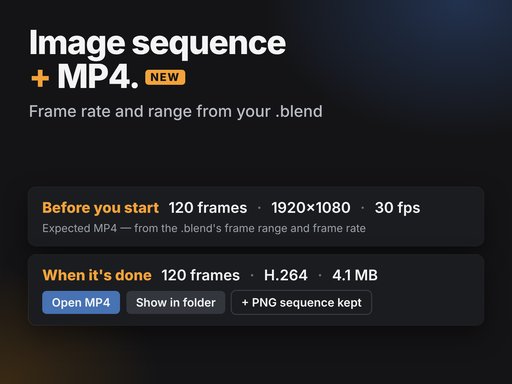
Image sequence, MP4 — or both
Make an MP4 on its own or next to a PNG / JPEG / TIFF sequence. The MP4 uses the frame rate and frame range from the .blend. Before you start, the form shows the expected MP4. When it's done, the job shows the actual frames, size, frame rate, length and codec, with Open MP4 and Show in folder buttons.
Every computer gets everything it needs
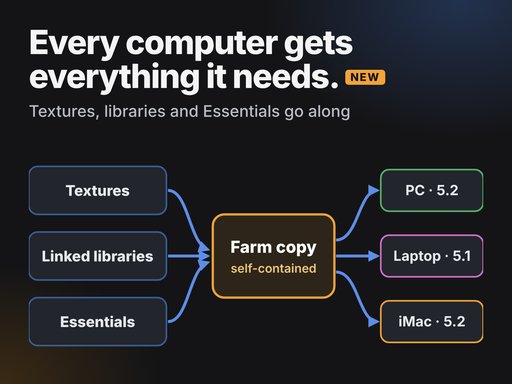
External textures are packed into the farm's copy of the scene.
Linked .blend libraries are packed too.
Blender's own assets, like the Essentials node groups, are embedded. Computers with another Blender version or install folder still render them.
Helper computers delete their copy when the job is done, so their disks don't fill up.
Your original file is never changed.
Requirements
- Blender 4.2 or newer on every computer (tested with 5.0 and 5.2). Use the same Blender version everywhere so frames match.
- Windows 10/11, macOS or Linux. Mixed systems work.
- All computers on the same local network (Wi-Fi or Ethernet). Guest networks or routers with "client isolation" block computers from seeing each other.
- Windows: allow Blender through the firewall on private networks. The add-on has a one-click button for this.
- Optional:
- ffmpeg for faster MP4 encoding. Otherwise Blender's own encoder is used.
- Microsoft Edge or Google Chrome to open the dashboard as an app window.
- No registration, license key or other downloads are needed.
Good to know
- Alembic/USD caches, disk physics caches and movie clips are not packed. The dashboard warns about them before you start.
- The farm uses UDP port 8801 for discovery and TCP port 8800 for the dashboard and file transfer. Set a farm key on shared networks.
- LAN Render Farm never contacts a server on the internet.
- License: GPL-3.0-or-later.
Having problems?
Report problems and questions to [email protected]. Please include:
- your Blender version and operating system;
- what happened (a screenshot helps);
- for connection problems, the text from Diagnose › Copy diagnosis;
- for render problems, the end of node.log (Preferences › Open Data Folder).


