 Models
 Materials
 HDRIs
HDRIs
 Scenes
 Brushes
 Node Groups
 Printables
 Creators
 Creations
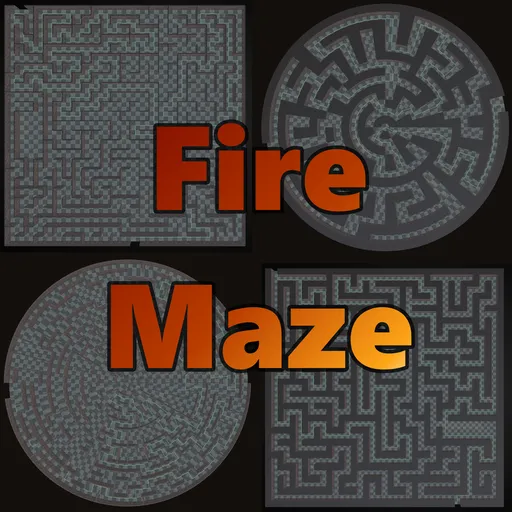
FireMaze
 add-on
A Blender 4.2+ extension for generating, editing, and customizing tile-based mazes with 10 algorithms, rectangular/polar grids, procedural rooms, interactive viewport editing, image masking, vertex painting, and session save/load.
A Blender 4.2+ extension for generating, editing, and customizing tile-based mazes.
It supports rectangular and polar (circular) grids, two construction modes (Thin walls and Cube pillars), 10 generation algorithms, procedural rooms, loop and pillar settings, image masking, custom collection randomization, interactive viewport editing, real-time pathfinding guides, vertex painting, prop/decor spawning, and full session save/load to disk.
Quick Start
- Install the extension - see Installation below.
- Open the 3D Viewport, press N to open the sidebar, and select the FireRat tab.
- In the Maze Settings panel, pick a Grid Type (Rectangular or Polar), set Width/Depth or Rings, and choose a Wall Mode (Thin or Cube).
- Click Generate Maze to create your maze. The default algorithm (Depth-First Search) works well for a first run.
- (Optional) Click Interactive Edit in the Generation & Editing section to paint walls in the viewport. Left-click toggles walls on/off; Shift+left-click cycles through the meshes in your custom collection.
Installation
FireMaze is structured as a standard Blender 4.2+ extension.
- Zip the FireMaze/ subdirectory to create FireMaze.zip (or use the pre-packaged ZIP in this repository).
- In Blender, navigate to Edit -> Preferences -> Get Extensions.
- Click the dropdown arrow (▼) in the top-right corner and choose Install from Disk...
- Select FireMaze.zip and click Install.
- Enable the extension. The interface will appear in the Sidebar (N key) under the FireRat tab.
Documentation
Full documentation is split into separate reference guides:
- [Features & Settings Guide] : Detailed reference of Wall Modes, Grid Types, 10 Generation Algorithms, Rooms, Loops, Editor, Guide Paths, Custom Tiles, Vertex Painting, Prop Spawning, and Colliders.
- [Usage & Management Guide] : Reference for Object Categories, Material Slots, Collection Management, Save/Load Sessions, Recovery Autosaves, and Image Exports.
Detailed reference of all features and settings available in the FireMaze Blender extension.
1. Wall Construction Modes(Maze Settings panel)
- Thin Wall Mode: Walls are rendered as thin box segments aligned along grid lines with customizable thickness. Ideal for classic dungeon layouts.
- Cube Mode: Walls are full, tile-sized cubes centered on grid cells. The generated maze respects the exact layout dimensions, and path cell centers are placed perfectly within the grid.
- Tiled Height: Optionally stack walls in tile-height increments for consistent UV mapping across segmented wall stacks (set number of tiles high).
(Maze Settings panel)
Rectangular and Polar (Circular) grids are supported, each with its own maze generation and mesh construction logic.
- Rectangular Grid: Standard width x depth cell layout. All algorithms, rooms, loops, shape boundaries, image masking, and entrances/exits work as documented.
- Polar (Circular) Grid: Maze generated in concentric rings with radially-divided sectors. Each ring's sector count increases outward for a natural circular look. Custom tile alignment modes are available for polar mazes:
- Procedural Only: Uses procedurally generated curved meshes (wedges, circular arcs, radial walls). Custom tiles are ignored.
- Trapezoidal Scaling: Stretches custom tiles to fit the wedge-shaped cells (straight walls, segmented appearance).
- Polar Bending (Warp): Dynamically bends/warps custom tile vertices along circular arcs for a smooth organic look. The warping projection resolves the inherent left-handed Jacobian reflection of polar coordinates by applying compensating negative scales (along local X or Z) to keep normals (blue), geometry, and texture orientations correct on all circular boundaries. Subdivision cuts for the bending warp are automatically capped (max 2 for detailed meshes, max 4 for simple proxy tiles) to prevent vertex explosion and memory crashes.
(Algorithm & Rooms panel)
FireMaze supports multiple algorithms to generate distinct maze layout architectures:
- Depth-First Search (DFS): Randomized recursive backtracker. Generates a "perfect" maze with long, winding corridors and a single path between any two points.
- Kruskal's Algorithm: Randomly merges paths by removing walls without creating loops. Produces shorter corridors and many dead-ends.
- Eller's Algorithm: Generates rows sequentially. Extremely memory-efficient, making it ideal for massive mazes. Corridors have a distinct row-by-row structure.
- Binary Tree: A simple, fast grid algorithm. Moves cell-by-cell carving north or east. Generates bias patterns with corridors leading north and east.
- Prim's Algorithm: Randomized version of Prim's MST. Carves paths outward from a visited set. Yields highly balanced, highly branching layouts with shorter corridors.
- Hunt-and-Kill: Randomly walks until trapped, then scans the grid row-by-row to find an unvisited cell with a visited neighbor. Generates long, winding corridors.
- Sidewinder: Processes row-by-row, building horizontal runs and randomly choosing vertical exits. Creates distinct horizontal bias with vertical connecting passages.
- Wilson's Algorithm: Loops-erased random walk algorithm. Creates a mathematically unbiased Uniform Spanning Tree with highly complex branch systems.
- Recursive Division: Recursively subdivides grid fields using vertical and horizontal walls with single doors carved in them. Generates nested rectangular chambers.
- Growing Tree: A hybrid generalized frontier algorithm. Uses a mixed selection strategy (50% DFS, 50% Prim's) to create interesting corridor and cluster flows.
Configure parameters to control the shape, flow, and directional bias of the generated layouts. All values range from 0.0 to 1.0 and default to 0.5:
- GT Selection Bias (selection_bias): Controls cell selection in the Growing Tree algorithm. A value of 0.0 always chooses the newest active cell (equivalent to Depth-First Search, producing long, winding corridors). A value of 1.0 always chooses a random active cell (equivalent to Prim's, yielding highly branched, clustered layouts).
- Corridor Straightness (straightness): Controls the probability of continuing in the same direction in DFS and Hunt-and-Kill. Higher values lead to longer, straighter corridors, while lower values result in highly frequent turns.
- Diagonal Bias (direction_bias): Controls the carving preference in the Binary Tree algorithm between North (connecting cells vertically, value 0.0) and East (connecting cells horizontally, value 1.0).
- Sidewinder East Bias (east_bias): Controls the probability of extending horizontal runs in the Sidewinder algorithm. Higher values create longer horizontal passages; lower values force more frequent vertical exits to the North.
- Split Orientation Bias (orientation_bias): Controls the split orientation for rectangular fields in the Recursive Division algorithm. A value of 0.0 biases splits to be vertical, while 1.0 biases them to be horizontal.
- Passage Location Bias (passage_bias): Controls door/passage placement along division walls in Recursive Division. A value of 0.0 pushes doors toward the center of the wall segment; 1.0 pushes doors toward the edges/corners.
- Eller Merge Prob (eller_merge_prob): Controls horizontal set merging in Eller's algorithm. Higher values increase horizontal connection rates within the same row; lower values keep rows more isolated horizontally, forcing more vertical routing.
- Radial Bias (radial_bias): Controls the movement preference in the Polar DFS algorithm. A value of 0.0 prefers tangential (concentric/circular) movements, leading to ring-like pathways. A value of 1.0 prefers radial (inward/outward) movements, leading to straight spoke-like pathways.
(Algorithm & Rooms panel)
Pre-carve open room areas within the maze.
- Enable Rooms: Toggles room generation.
- Room Count: The number of rooms to place.
- Min / Max Room Size: Bounds for the randomized width and depth of rooms (measured in cells).
- Rooms automatically connect to the corridor network and are guaranteed to contain no stray pillars or internal walls in both Thin and Cube modes.
- Rooms respect the blocked mask — any room placement that overlaps a blocked cell is skipped, ensuring image-masked layouts remain intact.
- Note: Rooms are only generated for Rectangular grids.
(Loops & Layout panel)
- Loop Probability: Set between 0.0 (perfect maze) and 1.0 (maximum loops). Randomly removes additional walls to create alternative paths, loops, and circular corridors.
- Isolated Wall Prob: Set between 0.0 and 1.0. Places standalone, single-wall columns or pillars in floor regions to act as obstacles.
- Note: Loops & Layout settings only apply to Rectangular grids.
(Entrances & Exits panel)
- Completion Goals:
- Find Center: Edge entrance leading to a goal in the center.
- Find Exit: Entrance on one side, exit on the opposite side.
- Placement Side: Place entrances or exits along specific borders (North, South, East, West, or Random/Any).
- Counts: Support for multiple entrances and exits (from 1 to 10). The generator ensures they always connect properly to path corridors, avoiding isolated entrances in Cube Mode.
- Emergency Exits (Center Mode only): Adds extra random openings on outer edges that lead out of the maze, providing multiple escape points.
(top-level FireMaze panel)
You can paint, modify, and customize the maze layout in real time directly from the 3D viewport:
- Click Interactive Edit (or press the button in the Sidebar).
- Your viewport status bar displays editing shortcuts. Left-click on any cell or wall face to toggle it on/off; Shift + left-click to cycle that face's mesh from its custom collection.
- The guide path and Blender meshes rebuild automatically in real time.
- Press ESC or ENTER (or click Exit Edit Mode in the sidebar) to return to normal scene interaction. The editor also monitors active workspaces and window states; switching to another workspace tab (e.g., Texture Paint) or clicking in another viewport region will automatically terminate edit mode, releasing event grabs and preventing UI lockout.
Note: Clicks on the Sidebar (N-panel) are ignored by the editor modal so you can modify materials, view settings, or click buttons without leaving edit mode.
When the maze has multiple floors (floors > 1), a tool selector is available in the sidebar to choose the action of your viewport clicks:
- Toggle Walls (wall): Left-click on a wall cell or boundary to add/remove walls, or Shift + Left-click to cycle custom collection assets.
- Toggle Stairs (stair): Left-click on a cell to place a vertical stair/ramp connecting the active floor level to the level above, or click an existing stair to remove it. Shift + Left-click on an existing stair to cycle its orientation (N -> E -> S -> W -> N for Rectangular; CCW -> OUT -> CW -> IN -> CCW for Polar). Stair placement is disabled on the top-most floor.
Precision Click Target: The editor modal temporarily generates an invisible flat-faced helper mesh (_FireMaze_Edit_Helper) and raycasts against it. This makes face classification and grid coordination 100% mathematically exact, preventing clicks on complex/curved custom meshes from misrouting. In Instanced Pillars (Pillar Mode), clicking the top/roof area of a pillar is fully supported for toggling or swapping, even though the roof mesh itself is not generated.
Performance: During interactive editing, heavy post-processing (lightmap UV unwrap, vertex painting, planar dissolve, prop spawning, collider generation) is automatically bypassed to keep click-to-toggle response instantaneous. Exiting edit mode triggers a single full rebuild with all post-processing applied.
(Guide Path panel)
Generate and display the shortest route through your maze:
- Style: Render the guide as a simple 3D Curve, a solid Tube mesh, or a flat Ribbon.
- Width & Height Offset: Control the guide tube/ribbon thickness with Guide Width and adjust its vertical position with Height Offset.
- Sine-Wave Animation: Apply a floating wave animation using customizable Wave Amplitude and Wave Frequency values.
- Emission Shader: The guide path automatically loads a bright neon-green glowing emissive material (FireMaze_Guide) to visually stand out in Eevee or Cycles.
(Custom Meshes & Collections panel)
Replace standard meshes with randomized objects from collections and customize individual faces:
- Floor / Roof Meshes & Collections: Replace standard tiles with a custom mesh or assign collections (Floor Collection / Roof Collection) containing multiple mesh objects to randomly distribute varied floor and roof tiles. Note: When floor_thickness > 0, custom floor/roof meshes are placed at the top surface and do not scale with thickness.
- Wall Mesh & Wall Collection: All wall segments are generated from a single optional Wall Mesh (or, when Wall Collection is set, randomly distributed across all meshes in that collection). There is no separate mesh-per-direction - directional variety comes from the runtime per-face cycling described in the Independent Face/Tile Swapping bullet below.
- Double-Sided Thin Walls (Thin Wall Mode only): When enabled, a single-sided custom thin-wall tile is duplicated on both sides of the grid line to fake thickness. Disable this when your custom wall tile already has built-in thickness, so a single centered tile is used.
- Instanced Pillars (Pillar Mode) (Cube Mode only): Enable Instanced Pillars to use whole meshes from your Wall Collection as single pillars/cubes rather than assembling them face-by-face. Roof tile generation is automatically suppressed in this mode because each pillar mesh is assumed to already have its own roof. Clicking or Shift-clicking on the top/roof area of these pillars works seamlessly to toggle or cycle them.
- Clean Wall Corners (Thin Walls only): When enabled, thin wall and roof faces are extended at intersections to close gaps and eliminate visible seams. UV coordinates are adjusted proportionally, so textures remain perfectly stretched and seamless. Roof faces may overlap slightly at corners.
- Independent Face/Tile Swapping: In Interactive Edit Mode, Shift + Left-Clicking a face cycles its mesh index from the respective collection. Walls themselves do not have separate per-direction (N/S/E/W) assets - rather, the Shift+click action on a given wall face swaps the whole wall in that cell:
- In Cube Mode, raycast hit normals are used to detect the clicked direction, allowing you to cycle the wall assembly on the North, South, East, and West faces of a pillar (when not in Instanced Pillar Mode), as well as the floor tile and roof tile of the cell, completely independently.
- In Thin Wall Mode, distance-to-edge calculations (d_N, d_S, d_E, d_W) are used to precisely target and cycle the clicked thin wall segment, floor, or roof. Shared walls between adjacent cells are automatically synchronized to maintain consistent rendering.
- Stable & Performant Custom Mesh Merging: Custom meshes are loaded and transformed using a lightweight BMesh-to-BMesh copy function (_merge_bmesh_geometries) that avoids intermediate bpy.types.Mesh allocations and C-level datablock mutations, preventing memory corruption and Blender crashes. Additionally, a module-level BMesh cache is active during generation to avoid redundant mesh parsing, resulting in a large speedup for large custom mazes.
- Mesh Origin & Alignment Requirements: For proper alignment of custom/collection meshes:
- Pillars & Walls (especially Instanced Pillars): Meshes MUST be centered horizontally (local X=0, Y=0) and have their bottom aligned vertically with the local origin (local Z=0). If a mesh is centered vertically (origin at the center of the asset, like default Blender cubes), it will sink halfway into the floor (i.e. it will be lower than it should be).
- Floors: Floor meshes should be centered horizontally (local X=0, Y=0) with their bottom face aligned vertically at local Z=0 (so they sit on the ground plane).
- Roofs: Roof meshes should be centered horizontally (local X=0, Y=0) with their top surface aligned vertically at local Z=0.
- Tiles Centered: Toggles whether your custom assets have their origin at their center (like Blender primitives) or at the bottom-left corner.
(Detailed Transforms panel)
Add variety and organic offsets to standard or custom tiles using local matrix transforms:
- Wall, Floor & Roof Transforms: Control Translate, Rotate, and Scale vectors independently.
- Transforms are applied relative to each individual tile segment's local center, making it easy to create crumbled walls, tilted floors, slanted or displaced roofs, and varied block scales. Roof Translate, Rotate, and Scale vectors are exposed and applied relative to each roof tile segment's local center, matching walls and floors.
(Session & Image Management panel)
Use a black-and-white image to define the walkable shape of the maze:
- Load Mask from Disk: Directly import a PNG, JPG, BMP, or TGA file from disk as the mask image via the Session & Image Management panel.
- Mask Image: Select an existing Image datablock in Blender. White pixels are walkable (path), black pixels are blocked (wall).
- Invert Mask: Swap the interpretation (black = walkable, white = blocked).
- The mask image is sampled at each cell's position, making it easy to create mazes shaped like logos, text, or custom silhouettes.
- Note: Image masking is only available for Rectangular grids.
(Maze Settings panel — Rectangular grids only)
Define the walkable area of your maze using geometric shape boundaries. Shape boundaries produce a blocked grid that the generation algorithms respect — cells outside the shape are treated as solid walls.
Available Shapes| Shape | Description |
|---|---|
| Rectangle (rect) | Standard rectangular boundary. No masking applied. |
| Diamond (diamond) | Manhattan-distance diamond silhouette. |
| Triangle (triangle) | Equilateral triangle inscribed in the grid, pointing upward. |
| Hexagon (hexagon) | Regular flat-top hexagon inscribed in the grid. |
shape_rotation — Enum: 0°, 90°, 180°, 270° (default 0°)
Rotates the shape boundary around the grid center. Each cell center is tested against the rotated shape to determine if it falls inside or outside.
Smooth Shape Edgessmooth_shape_edges — Toggle (default OFF)
When enabled, boundary cells at the shape contour receive additional geometry for a smoother outline. Two methods are available:
| Method | Property Value | Behavior |
|---|---|---|
| Filler Triangles | 'filler' | Generates extra triangular faces at the shape contour to fill gaps between the square grid and the shape boundary. Applied per-floor for multilevel mazes. |
| Clipped Tiles | 'clip' | Clips floor and roof tiles exactly to the shape boundary contour using polygon intersection. |
- Boundary Offset (smooth_boundary_offset — Float, 0.0–2.0, default 0.15): Extends the shape boundary outward to clear corner fragments when using Clipped Tiles.
- All generation algorithms respect the shape mask — blocked cells are never traversed or carved.
- Entrances and exits are placed on the actual shape contour via _get_shape_boundary_candidates, not the grid rectangle.
- Rooms, stairs, and loops all respect the shape mask.
- Shape boundaries can be combined with image masking — a cell is blocked if either system marks it as blocked (logical OR).
Note: Shape boundaries are only available for Rectangular grids.
13. Vertex Painting(Post-Processing panel)
Procedurally paint vertex colors on maze meshes for shading, texturing, or game engine blending:
- Enable Vertex Painting: Toggle the vertex color pass on/off.
- Paint Intensity: Controls the opacity/strength of the effect (0.0-1.0).
- Paint Modes:
- Ambient Occlusion: Procedural darkening in corners, seams, and near floor/roof boundaries for a natural shadowed look.
- Texture Blend Weights: RGBA channels encode material blends (R=Moss near floor, G=Cracks in corners, B=Wetness on flat floors, A=Soot in dead-ends).
- Path Highlight: Greens the floor tiles along the shortest path to the exit/center.
- Distance Gradient: Black-to-white gradient mapped by BFS distance from the entrance.
(Prop & Decor Spawner panel)
Automatically place decorative objects on wall faces, dead-ends, and entrances/exits:
- Torch Object: Assign a mesh object (torch, lantern, etc.) to randomly spawn on valid wall faces. Controlled by Torch Density.
- Chest Object: Assign a mesh to spawn in dead-end cells. Controlled by Chest Density. Chests orient toward the only open direction.
- Door Object: Assign a mesh to spawn at entrance and exit openings.
- Spawned props are grouped under a scoped sub-collection (FireMaze_Props_{parent_name}), linked as a child of the maze collection, and tagged with a fire_maze_data custom property so they are reliably cleaned up when the maze is cleared.
(Post-Processing panel)
- Single Wall Object: Merges all wall and cap faces into a single object (FireMaze_Walls) to keep the outliner clean.
- Merge Objects: Combines floors, walls, roofs, and caps into one single merged mesh (FireMaze_Merged).
- Remove Doubles: Performs a final vertex weld operation to merge touching corners and stacked tiled wall segments.
- Generate Lightmap UVs: Generates a second UV map named "Lightmap" on all final visual mesh objects (such as FireMaze_Merged or separate floor/wall/roof meshes) for baking or lightmapping. It offers two unwrapping methods:
- Smart UV Project: Groups adjacent/co-planar faces into contiguous UV islands (recommended for reducing seam-bleeding in game engines).
- Lightmap Pack: Project and pack each face individually (guarantees zero distortion and maximum packing efficiency, but splits every face).
- Optimize Geometry (Dissolve Planar): Simplifies mesh geometry by dissolving coplanar faces. Reduces poly count but may stretch seamless tiled textures.
- Generate Colliders: Generates simple, flat-faced helper meshes (FireMaze_Floor_Collider, FireMaze_Walls_Collider, FireMaze_Roof_Collider) matching the maze layout for easy game engine integration (hidden in final renders by default). Note: Roof colliders are generated even when Instanced Pillars (Pillar Mode) is enabled so that they can be used for collision.
- Merge Colliders: Combines all active collider objects into a single unified FireMaze_Collider mesh.
- Optimize Colliders: Applies planar dissolve (limited dissolve) to collider meshes, merging coplanar faces to reduce polygon count. Works on individual or merged colliders.
(Maze Settings panel)
Configure vertical floor transitions and staircase layouts for multi-floor mazes:
- Floors: Sets the number of vertical levels in the maze (supports 1 to 20).
- Floor Thickness (floor_thickness — Float, 0.0–10.0, default 0.0): Adds physical depth to the floor slab between levels. When greater than zero:
- Floor tiles become 6-face boxes (top, bottom, and 4 sides) instead of single quads.
- Three material slots are used: 0 = top (walkable surface), 1 = bottom (underside), 2 = sides.
- All vertical positioning uses level_height = wall_height + floor_thickness.
- Custom floor/roof meshes are placed at the top surface and do not scale with thickness.
- Stairs Per Level (stair_count): The number of staircase openings and paths generated between adjacent floor levels.
- Stair Style (stair_style): Select between stepped Staircase (stair) and smooth sloped Ramp (ramp) geometry.
- Stair Footprint (stair_footprint): Configures the size and layout of staircases on Rectangular grids:
- 1x1: Standard spiral staircase/ramp occupying a single cell.
- 1x2: Two-cell straight staircase.
- 2x2: Two-by-two U-turn staircase with landing.
- Note: Polar grids only support 1x1 spiral footprints.
- Stair Direction (stair_direction): Configures the facing orientation of the stairs:
- Rectangular: North (N), East (E), South (S), West (W).
- Polar: CCW (N), Outward (E), CW (S), Inward (W).
- Custom Stair & Ramp Objects:
- Staircase Object (custom_stair_mesh) and Ramp Object (custom_ramp_mesh) pointers allow you to assign custom Blender Object pointers (meshes or lights, not collections) to instantiate at stair/ramp cells instead of the procedurally generated stair/ramp geometry.
- For larger footprints (1x2, 2x2), only the starting candidate cell receives the custom mesh (or procedural stair instance), while the other footprint cells are carved open on both floors (no floor or roof tiles are built) to serve as a landing or open vertical shaft.
Details on object layout, collection management, save/load sessions, and image exporting.
Object Categories & Material SlotsWhen generated, the addon creates separate objects based on your merge configuration:
| Object Name | Material Slot | Description |
| :--- | :--- | :--- |
| FireMaze_Floor | FireMaze_Floor (Dark gray) | All floor tiles. |
| FireMaze_Walls | FireMaze_Walls (Mid-gray) | Side faces of walls (optimized to remove hidden internal faces). |
| FireMaze_Roof | FireMaze_Roof (Medium gray) | All roof/ceiling tiles. |
| FireMaze_WallEndCaps | FireMaze_WallEndCaps (Reddish) | Caps on endpoints in Thin wall mode (merged if Single Wall is on). |
| FireMaze_Stairs | FireMaze_Walls (Mid-gray) | Generated staircase or ramp geometry. |
| FireMaze_Guide | FireMaze_Guide (Neon green) | Neon emissive path curves/ribbons showing the shortest route. |
- Generating a maze creates a new nested collection (e.g. FireMaze, FireMaze.001, etc.) containing all generated objects.
- The collection stores a serialized JSON custom property named fire_maze_data. This property contains the grid dimensions, cell states, entrance/exit coordinates, wall mode, shape boundary and smooth edge settings, and floor thickness.
- Interactive editing and rebuild operators read this serialized data directly, ensuring that the viewport editor works seamlessly across different files and sessions.
- Prop/decor objects are grouped under a scoped sub-collection (e.g. FireMaze_Props_FireMaze), linked as a child of the maze collection, and tagged with a fire_maze_data custom property.
- Clicking Clear Maze scans the scene for any object or collection carrying the fire_maze_data custom property, unlinks them, and purges empty collections. Orphaned mesh/curve datablocks are swept from the database to prevent memory leaks.
- Save Session to Disk: Exports all maze settings, pointer references, and the full grid layout to a .json file via a file dialog. The session includes every property and the serialized cell data. Note that pointer references (meshes, collections, images) are stored by name and will only be restored if matching datablocks already exist in the current .blend; external custom assets are not packed or recreated across different machines.
- Load Session from Disk: Opens a .json session file, restores all properties (including mask_invert, optimize_colliders_coplanar, etc.), re-links mesh/collection/image references by name, recreates the collection, and rebuilds the maze layout.
- Autosave (Crash Recovery): The addon automatically saves current settings and maze data to a temporary file on every generation. After a crash or restart, a Restore Session button appears in the Session & Image Management panel alongside a Discard button to dismiss the recovery data.
- Discard Recovery Data: Deletes the temporary autosave file from disk and dismisses the recovery warning without loading.
- Save PNG to Disk: Exports the maze layout as a black-and-white PNG directly to a file path of your choice (uses Blender's native file save dialog).
- Create Blender Image: Generates an in-memory Blender Image datablock (FireMaze_Layout) showing walls as black and walkable cells as white. Useful as a reference minimap or for external editing.
A dedicated sidebar panel groups all session and image operations in one place:
- Session Management section with side-by-side Save Session... / Load Session... buttons.
- Conditional crash recovery warning box (shows Restore Session and Discard buttons) that only appears when a leftover autosave file exists from a previous session.
- Masking & Image Export section with Load Mask from Disk..., mask selection, invert toggle, Save PNG to Disk..., and Create Blender Image buttons.


