Blendkit for Godot 🔗
Ever dreamed of using Blendkit (formerly BlenderKit) in Godot Engine? Now you can!
Search the Blendkit library right inside the Godot editor: open the Blendkit workspace, find an asset, click Download, and it lands in your Godot project, organized and ready to use.
Our free and open-source plugin is in its alpha stage (view GitHub repo). Please experiment and share your thoughts.

Requirements 🔗
- Godot Engine 4
- OS: Linux, Windows
- macOS is untested, it probably needs signing (planned)
- Architectures:
x86_64,arm64 - Web browser and Apps on Device permission to connect to Blendkit Client
How to install 🔗
Option A: Asset Store (Godot 4.7+, recommended)
- Open the Asset Store tab at the top of the editor.
- Search for Blendkit, click Blendkit 3D Asset Library, and press Download (keep the default path).
- Click Plugins and enable Blendkit.
- The Blendkit workspace appears in the editor's top bar and Blendkit messages appear in Output. Done!
Option B: Manual install from ZIP (Godot 4)
Use this to get the latest version before it reaches the Asset Store.
- Download
blendkit-godot_vX.Y.Z.zipfrom GitHub Releases. - Copy the
addonsfolder from the archive into your project folder (the one containingproject.godot). To find it, right-clickres://in the FileSystem dock and choose Open in File Manager. - Verify the file structure: in the FileSystem dock, you should see exactly
res://addons/blendkit/plugin.cfg. - Navigate to Project → Project Settings → Plugins and check the Enabled box next to Blendkit.
- The Blendkit workspace appears in the editor's top bar and Blendkit messages appear in Output. Done!
- Do you see an extra folder like
res://blendkit-godot_vX.Y.Z/addons/...instead? Some unzipping tools (such as Windows Extract All) create an extra folder named after the archive. Simply move theaddonsfolder out of it into your root project folder, then delete the empty archive folder. - Does your project already have an addons folder? Merge them. The blendkit folder will sit right next to your other add-ons.
Upgrading: first delete addons/blendkit/, then install the new version.

How to use 🔗
- Open the Blendkit tab in the editor's top bar, next to Asset Store.
- The dot on the Blendkit logo at the end of the search bar shows the Blendkit Client status. Green means all is good. If it's red or gray, click the logo to open the Blendkit menu, where you can turn the Client on or Restart Client. If that doesn't help, see Troubleshooting.
- Search by text and filter by asset type (Models, Materials, HDRs, Scenes, Printables), category, polygon count, Free only and more. Scroll down to load more results.
- Click an asset to see its details, choose a file and click Download. A thin bar along the bottom of the thumbnail shows the progress, and a check mark in its corner shows the asset is in your project.
- Assets land in
bk_assets/(or whatever you set in Settings) in your project root, organized by type and asset, for examplebk_assets/models/chair/chair_gltf_godot.glb. Drag a model into your scene, or drop a material onto a mesh. - Click the download toggle next to the search bar to see the assets already in your project, with a local search and Show in FileSystem. Click it again or Browse Blendkit to get back to the gallery.
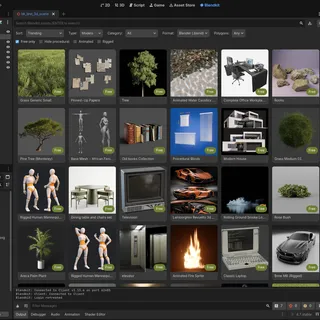
Blendkit workspace in Godot Editor
Troubleshooting 🔗
Check existing issues: Browse GitHub Issues to see if your problem has already been reported or resolved.
Open a new issue: If nothing matches, open a new issue and describe what happened, your OS, Godot version, and any error output.
Contact us: If needed, email us for help.
New to Blendkit? Read all about it.
Enjoy:-)