 Add-ons
 Models
 Materials
 HDRIs
HDRIs
 Scenes
 Brushes
 Node Groups
 Printables
 Creators
 Creations
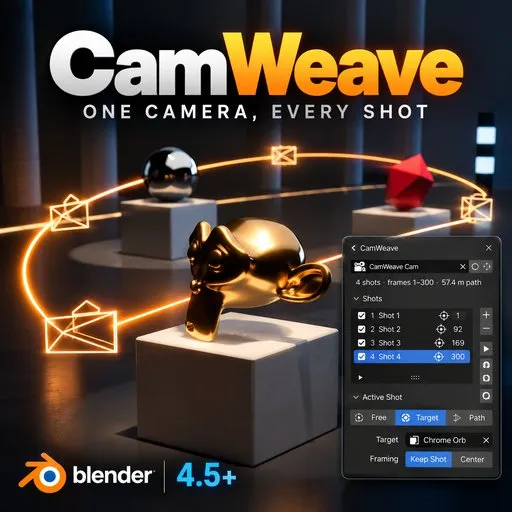
What is CamWeave?
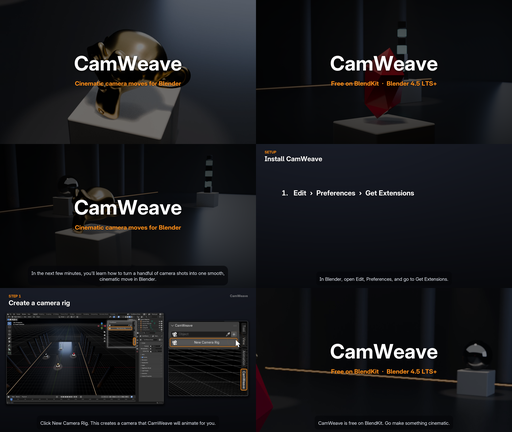
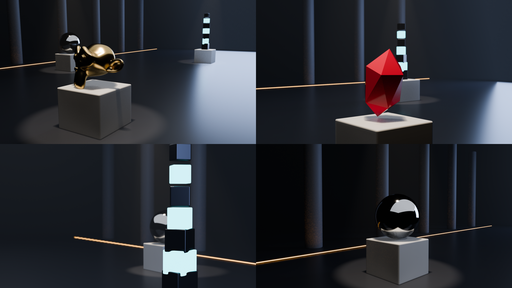
CamWeave turns a handful of camera shots into one smooth, cinematic camera move. Instead of keyframing a camera by hand, you frame each shot in the viewport, and CamWeave glides a single camera through all of them, blending position, rotation, focal length and focus along the way. It is built for motion designers, product and architectural animators, and anyone who wants polished camera work without fighting the Graph Editor.
Why CamWeave?
• Frame shots, not keyframes. Set up each shot exactly as you want it to look, and CamWeave handles everything in between.
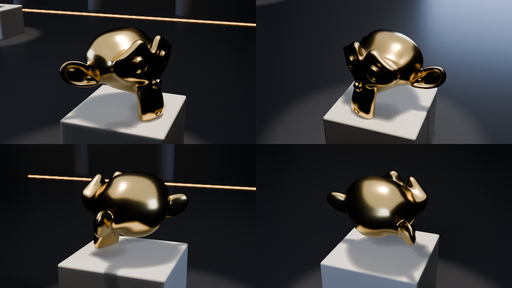
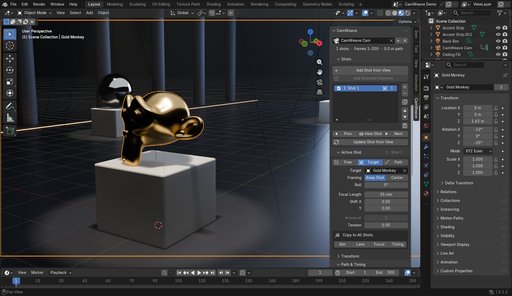
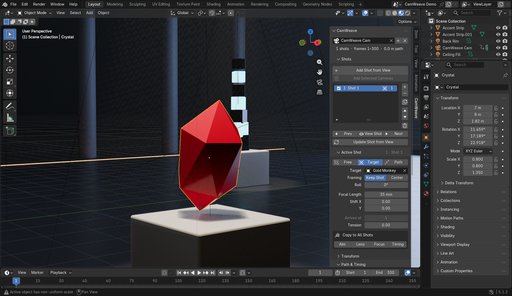
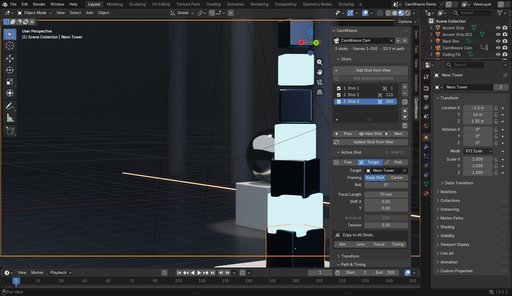
• Every shot can track its own subject. Select an object, frame it, add the shot, and the camera follows that object while still landing on your exact composition.
• Smooth, even motion. The camera travels at a constant speed along the path, and every shot lands on an exact frame.
• Renders anywhere. The move is baked to plain keyframes, so your scene renders on any machine or render farm, even without the add-on installed.
How to Use
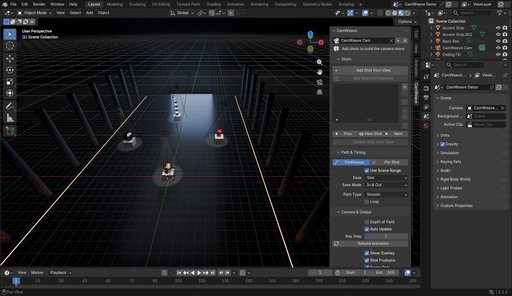
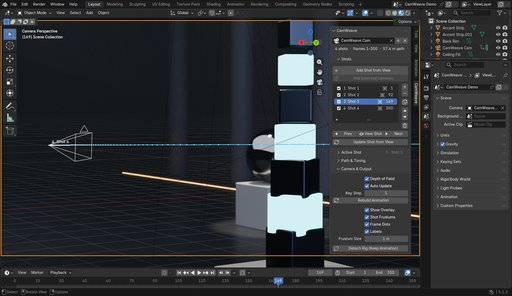
- In the 3D Viewport, press N and open the CamWeave tab.
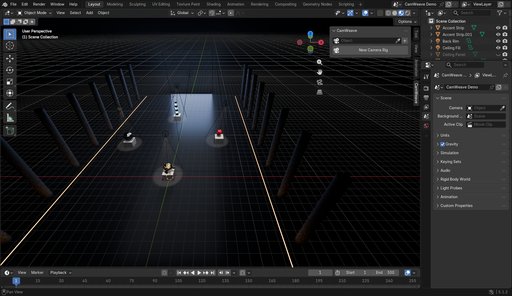
- Click New Camera Rig.
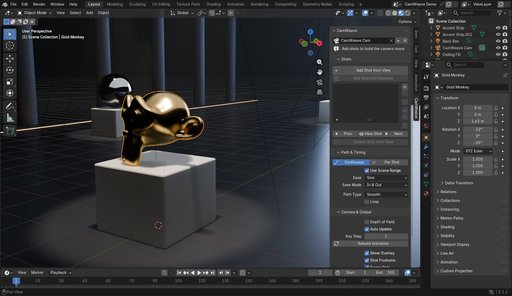
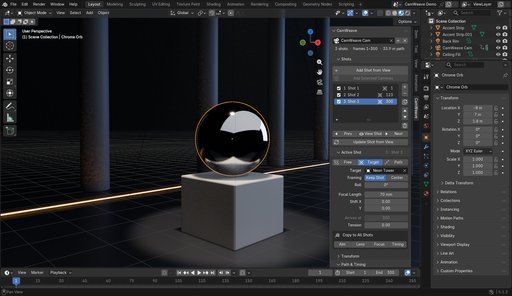
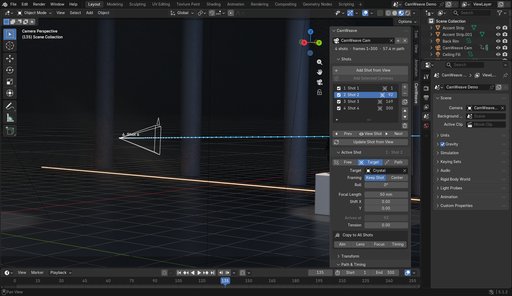
- Select an object, frame it in the viewport, and click Add Shot from View.
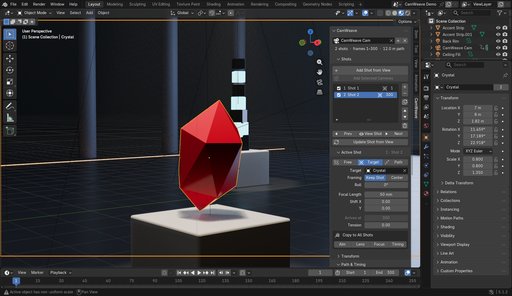
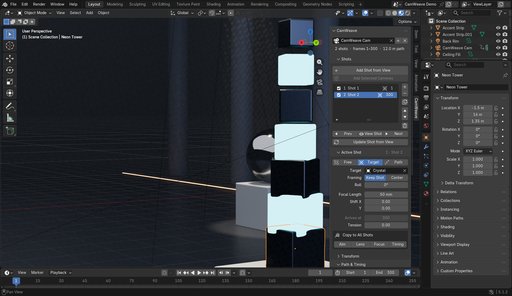
- Repeat for every shot you want in the move.
- Press Numpad 0 to look through the camera, then press Space to play.
Already have cameras placed in your scene? Select them and click Add Selected Cameras to turn them into shots in one go.
Shot Settings
Each shot has its own settings, and CamWeave blends smoothly between them:
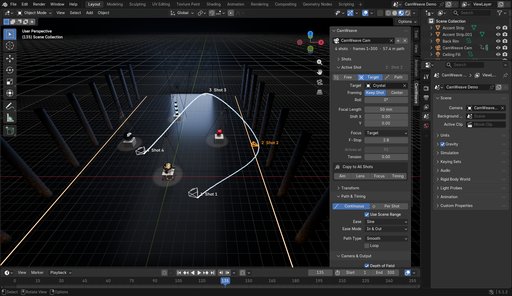
• Aim: Free keeps the rotation you captured, Target follows an object, and Path looks ahead along the direction of travel.
• Framing: Keep Shot preserves your composition while tracking a target, and Center puts the subject in the middle of the frame.
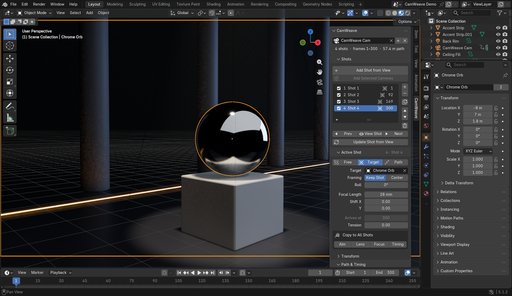
• Lens: focal length and lens shift, so a wide shot can flow into a close-up in one continuous move.
• Focus: with Depth of Field on, focus follows each target automatically and racks from one subject to the next. F-stop is animated too.
• Roll and path tension for fine control.
• Copy to All Shots applies the aim, lens, focus or timing of one shot to every shot at once.
Timing
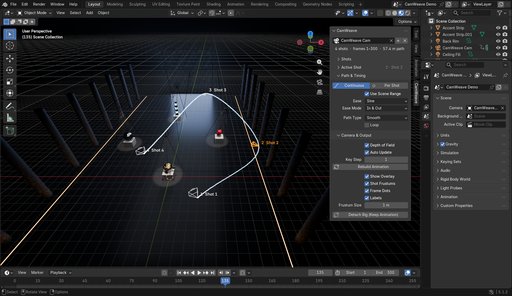
• Continuous: one smooth move through all shots at a constant speed, with a single ease in and out.
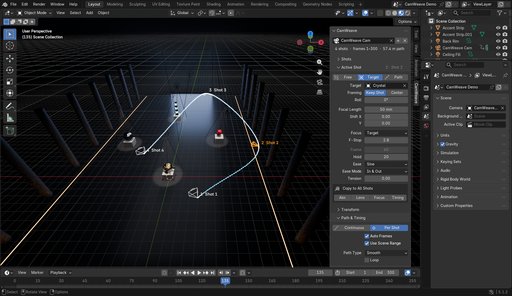
• Per Shot: every shot gets its own arrival frame, a hold to pause on it, and its own easing. Auto Frames spaces the shots by distance so the speed stays even.
• Easing curves: Linear, Sine, Quadratic, Cubic, Quintic, Exponential and Circular, each with In, Out, or In & Out.
Path Control
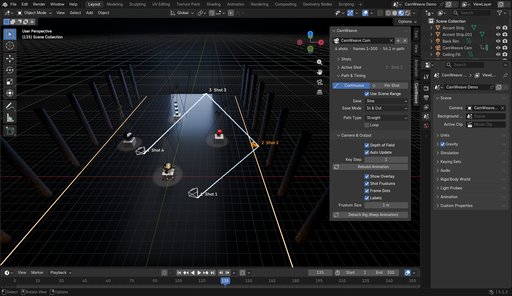
• Path Type: Smooth, Loose, Tight or Straight.
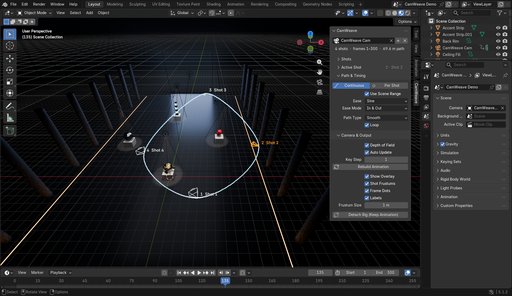
• Loop: close the path back to the first shot for orbits and turntables (3 or more shots).
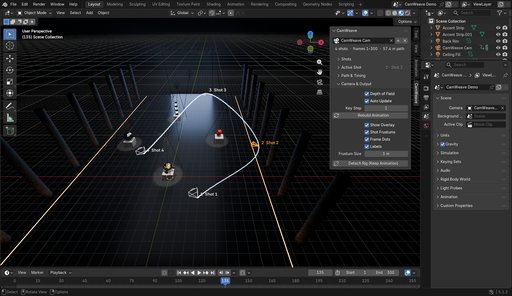
• The path passes exactly through every shot, with no loops or overshoot in Smooth mode.
Viewport Overlay
See the whole move before you render:
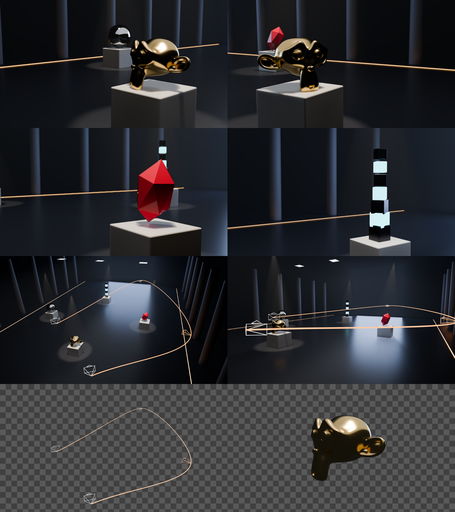
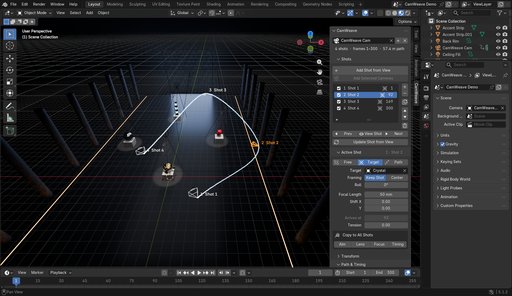
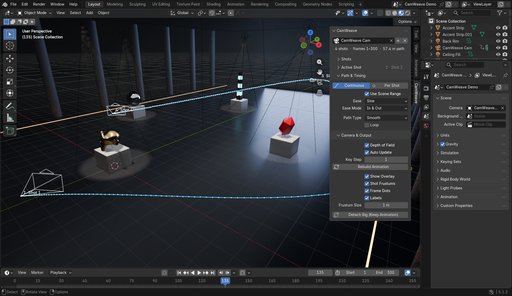
• The camera path drawn as a line through the scene.
• One dot per frame, so you can read the speed at a glance: evenly spaced dots mean even speed.
• A camera frame and label for every shot, with the active shot highlighted.
• Everything can be toggled, and the frame size adjusted.
Workflow and Pipeline
• Live updates: the animation rewrites itself whenever you change a shot, and even when you move a target object. Animated targets are followed frame by frame.
• Auto Update can be turned off for heavy scenes. Press Rebuild when you are ready.
• Prev, View Shot and Next jump straight to any shot through the camera.
• Update Shot from View re-captures a shot after you move the view.
• Duplicate, reorder, rename, or temporarily disable shots.
• Multiple CamWeave rigs can live in the same scene.
• Detach Rig keeps the camera and its animation and removes the rig data, for final hand-off.
• All the animation is regular keyframes, so you can still refine it in the Graph Editor.
Compatibility and Requirements
• Blender 4.5 LTS, 5.0 and 5.1 (tested on 4.5.14, 5.0.1 and 5.1.2).
• Installs as a standard Blender extension.
• No extra downloads, registration, license keys or internet connection required.
• Open source under the GPL-3.0-or-later license.
Questions, bugs or feature ideas? Leave a comment. Feedback directly shapes what comes next.