 Models
 Materials
 HDRIs
 Scenes
 Brushes
 Node Groups
 Printables
 Creators
 Creations
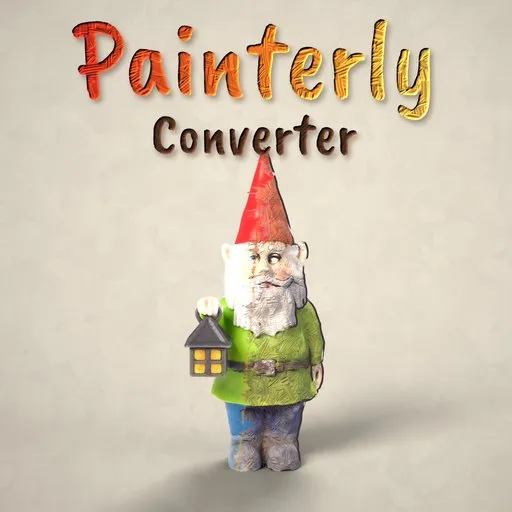
Painterly Converter – Hand-Painted Look for Blender
 add-on
Turn any textured or multi-material model into a hand-painted object in one click: brush strokes, paint patches, palette, wobble and a painted outline. Non-destructive, full control.
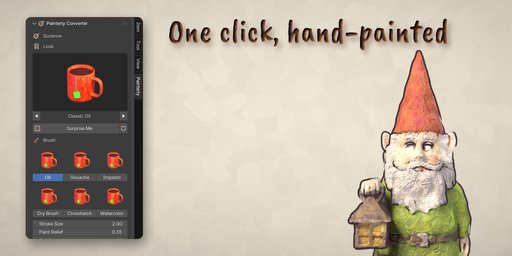
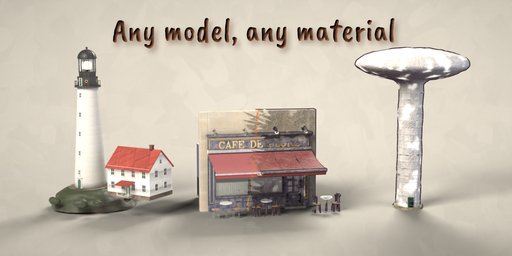
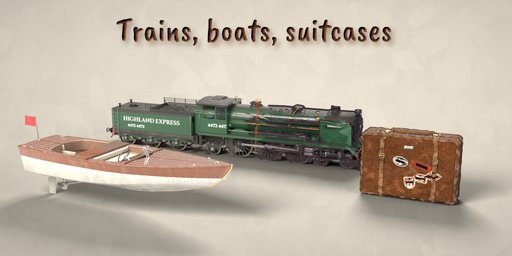
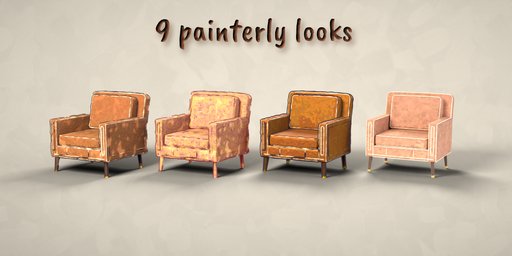
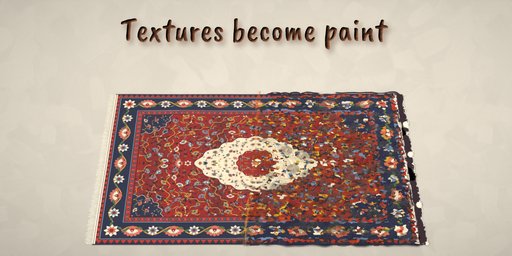
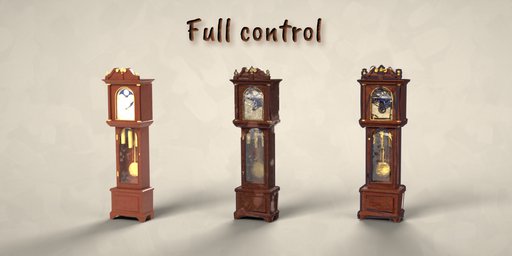
Painterly Converter turns any model into a hand-painted object in one click. Select a scanned asset, a textured game prop or a model with many materials, pick a look and press Make Painterly: every material becomes thick paint with visible brush strokes, flat paint patches, a warm and cool palette, a gently wobbly hand-made shape and a broken painted outline. It works on any mesh at any scale, in Cycles and EEVEE.
Nothing is destroyed. The addon paints copies of your materials on the object only and adds one modifier for the shape and outline, so the mesh, its original materials and any linked duplicates stay exactly as they were. Revert brings the original back at any time, and Make Permanent bakes the result into a normal mesh when you want to export it.
Image textures are not lost: they are smeared into flat dabs of paint that keep the colors and the design of the original, so a scanned gnome still has its red hat and green coat, now painted with a brush.
Features
- One-click conversion of textured and multi-material models, any number at once
- 9 looks: Classic Oil, Soft Gouache, Thick Impasto, Dry Brush, Watercolor, Sketchbook, Sunset Palette, Clay Sculpt and Storybook
- 6 brush stroke maps: oil, gouache, impasto, dry brush, crosshatch and watercolor
- Full control: stroke size, paint relief, patch count and detail, ragged edges, texture smear, palette colors, hue and value jitter, paint sheen, wobble and outline
- Painted outline with thickness, color, breakup and flat ink
- Surprise Me for a random harmonious look, Copy to Selected to share a look
- Non-destructive: Revert at any time, Make Permanent when you are done
- Editing one object never changes another, even linked duplicates
- Picture-driven sidebar with preview thumbnails for every look and brush
- Glass and transparent materials stay see-through: Keep, Painted Wash, Cutout or Solid Paint
- Works in Cycles and EEVEE
Requires Blender 4.2 or newer. Tested on Blender 4.2, 4.5 and 5.2 LTS.
How to use
Installation
In Blender open Edit, Preferences, Get Extensions, then use Install from Disk and pick the painterly_converter zip.
Usage
- Select one or more mesh objects and open the Painterly tab in the 3D viewport sidebar (N).
- Click the picture to choose a look, then press Make Painterly. Surprise Me picks a random look.
- With a painterly object selected, the sidebar shows its look, the brush pictures and the main sliders: stroke size, paint relief, patches, texture smear, palette, outline and wobble. The collapsed panels below hold every other setting.
- Copy to Selected copies the look of the active object to the other selected objects.
- Revert restores the original materials. Make Permanent (Finish panel) applies the shape and outline to the mesh for export.
Use Material Preview or Rendered view to see the paint. Both Cycles and EEVEE are supported.
FAQ
Which Blender versions are supported?
Blender 4.2 and newer. It is tested on Blender 4.2, 4.5 and 5.2 LTS.
Does it change my original model or materials?
No. The painterly materials are copies linked to the object only, and the shape and outline come from one modifier. Revert restores everything. Only Make Permanent changes the mesh, and it asks first.
Does it work with image textures and many materials?
Yes. Every material on the object is converted, and UV-mapped image textures are smeared into dabs of paint that keep their colors. Materials without a Principled BSDF are converted too.
What happens to glass and transparent materials?
They stay see-through. Glass keeps its own roughness, IOR and tint, and the paint bends the refraction instead of frosting it. Alpha cut-outs and transparent mixes keep their holes. Pick Keep, Painted Wash, Cutout or Solid Paint in the Transparency section. Works in Cycles and EEVEE.
Can I export the result to a game engine?
Make Permanent applies the wobble and outline to the mesh. The paint itself is a shader, so bake it to textures with Blender's baking tools if your engine needs plain image textures.


