
 Models
 Materials
 HDRIs
 Scenes
 Brushes
 Node Groups
 Printables
 Creators
 Creations
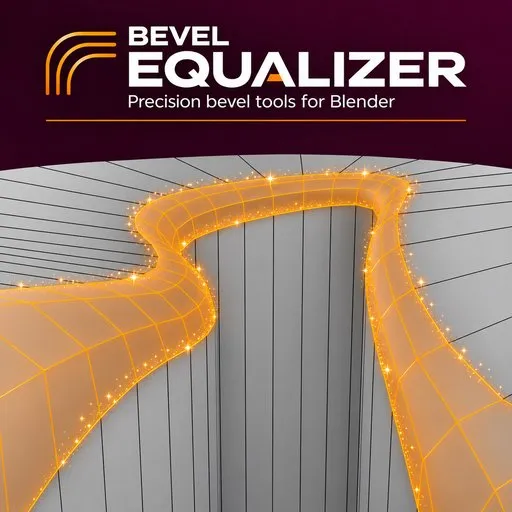
Bevel Equalizer
 add-on
Refine existing mesh bevels with nine tools. Select borders, fit and smooth profiles, resize bevels, adjust loops and segments, unify symmetric or asymmetric widths, restore sharp edges. The tools are simple, intuitive, and work with a single click.
Bevel Equalizer
Bevel Equalizer is a great companion for working efficiently in Blender. It allows you to retroactively edit existing edge bevels—adjusting the number of loops, changing the size, or evening out the shape. Bevel Equalizer offers true freedom when creating fantastic shapes.
It provides 9 specific tools for adjusting bevels, saving you time and hassle when refining your models.
1) Select Bevel
2) Fit Bevel
3) Fit Bevel Loops
4) Smooth Bevel
5) Scale Bevel
6) Bevel Segments
7) Uniform Bevel
8) Uniform Asymetric Bevel
9) Remove Bevel
Select Bevel

This tool helps you select, with a single click, the bevel boundaries of which the selected edge is a part.
1) Select one edge. Select one longitudinal edge. It does not matter whether it is an inner edge (in the case of a multi-segment bevel) or an outer edge. The tool will automatically detect the boundaries.
2) Click on the select bevel
3) Check the selection of end edges at your own discretion.
Fit Bevel

Fit Bevel makes your edges look better and perform more effectively. It aligns the angles relative to the adjacent surfaces and, in the case of a multi-segment bevel, verifies and corrects the internal segments to ensure a seamless transition between the surfaces. The adjacent surfaces will not change their orientation, and the bevel will align along their edges.
1) Select one edge
2) Click "Select Bevel" or manually select the outer longitudinal edges of the part of the bevel you need.
3) click fit bevel and it's done
Fit bevel loops

"Fit Bevel Loops" is specifically designed to even out the spacing between the individual loops of a bevel that runs along a radius. Simply select the outer edges—including one edge before and one edge after the radius—and "Fit Bevel Loops" will handle the rest. The result is a smoother, more precise bevel contour as it follows the curve.
1) Select the outer edges
2) Click on the "Fit bevel loops" button
Smooth bevel

Smooth bevel smooths the transition between the large and small radii of the selected bevel. The length of this transition corresponds to the length of the edge selection.
You can choose between four transition modes—smooth, linear, sharp, and root/sphere—which you may already be familiar with from standard Blender tools.
1) Select the necessary part of the bevel, including the smallest and largest bevels.
2) Click on the "Smooth Bevel" button
Scale Bevel

Scale Bevel allows you to enlarge or shrink a bevel. The tool detects the orientation of adjacent faces and preserves it. The bevel is scaled along its edges until it reaches the displacement limit.
1) Select the outer edges of the bevel.
2) Click on "Scale Bevel" and drag the mouse to the left or right
3) Select the outer edges of the bevel
The size of the bevel can also be specified by entering a numerical value.
Bevel segment

Bevel segments add or remove internal loops within the bevel radius and automatically adjust their spacing to maintain the ideal bevel shape. The number of internal loops can be changed by scrolling the mouse wheel or by entering a numerical value.
1) Select the outer edges of the bevel.
2) Click on the "Bevel segment" button and scroll the mouse wheel to add or remove internal loops
Uniform bevel

"Uniform Bevel" standardizes the size of a bevel along its entire length while maintaining an ideal shape. It handles both symmetric and asymmetric bevel profiles. This operation can be computationally intensive—depending on the length and shape of the bevel—and may, in some cases, take several seconds to complete. The process prioritizes preserving the longitudinal form of the bevel to prevent excessive deviation in its path, while simultaneously maintaining the orientation of adjacent surfaces.
1) Select the outer edges of the bevel.
2) Klick on the "Uniform Bevel" or "Uniform asymetric bevel" button
Remove bevel

Remove Bevel removes the selected bevel and creates a new edge by extending the adjacent faces.
1) Select the outer edges of the bevel.
2) Click on the "Remove Bevel" button


