 Models
 Materials
 HDRIs
HDRIs
 Scenes
 Brushes
 Node Groups
 Printables
 Creators
 Creations
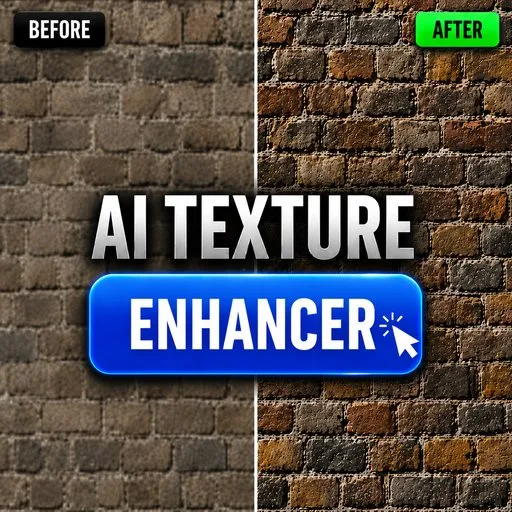
AI Texture Enhancer - Local 4x Upscale for Materials
 add-on
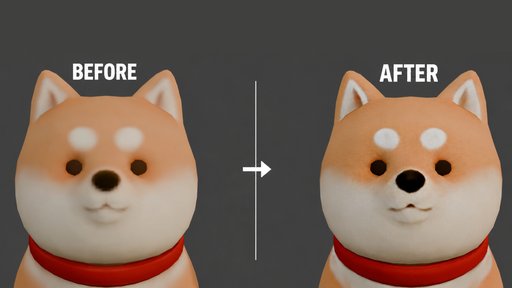
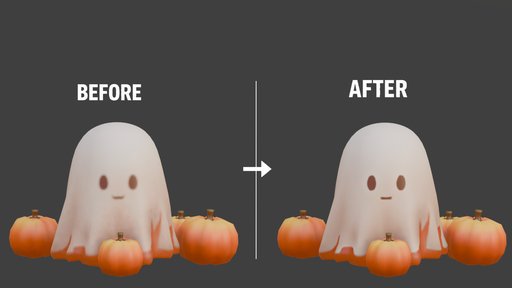
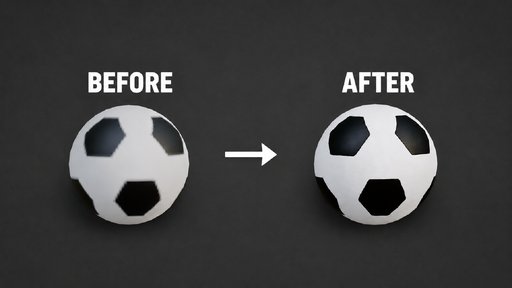
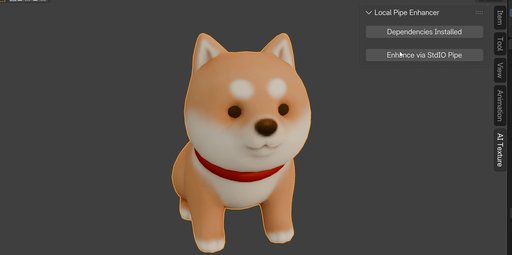
Upscale every texture on your selected objects by 4x directly inside Blender. Powered by AI, runs fully offline, no API key needed. One click processes all materials at once and packs the enhanced images into your .blend file.
Blurry textures break renders. Upscaling them manually exporting, running an external tool, reimporting, reassigning nodes wastes time every single time you iterate on a scene.
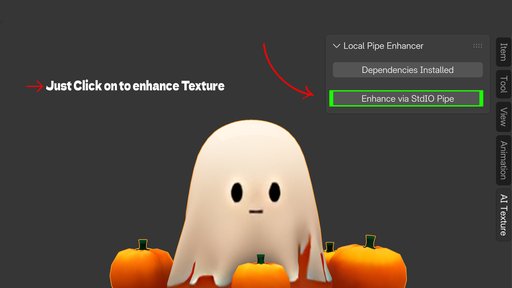
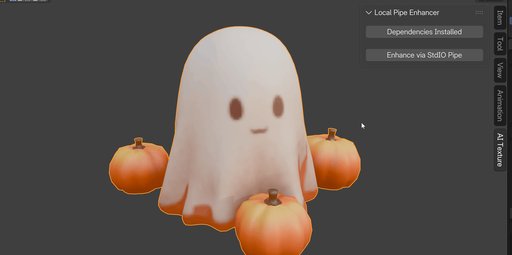
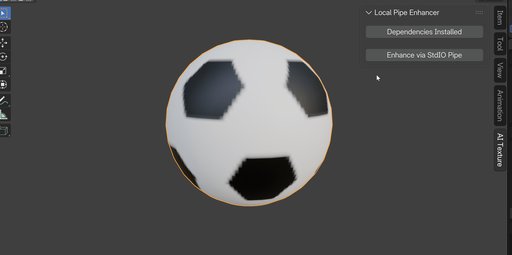
AI Texture Enhancer solves this inside Blender. Select your objects, click Enhance, and every texture in every material gets upscaled 4x using Real-ESRGAN, one of the most accurate open-source AI upscaling models available. Results are packed directly into your .blend file. No external windows. No manual node work.
How It Works
The addon runs a local background server that processes images through the Real-ESRGAN General x4v3 model via ONNX Runtime. Because the server runs as a separate process, Blender stays responsive during enhancement. Images are sent to the server over a fast stdio pipe, processed on CPU (or GPU with CUDA), and returned as new, packed Blender images with a clean suffix appended to the name.
Your originals are never touched. Every enhanced texture is created as a new image data-block, so you can compare before and after, or revert at any time.
What Gets Enhanced
The addon scans every selected mesh object, walks through all material slots, finds every Image Texture node with a valid image, and enhances each unique source image once. If the same texture is shared across multiple objects or materials, it is only processed once and reused automatically no duplicate processing, no wasted time.
First-Time Setup
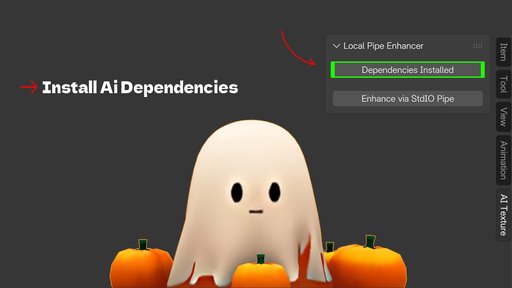
Click Install AI Dependencies once. The addon downloads Pillow, NumPy, and ONNX Runtime into a local folder inside itself no system packages are modified, no admin rights needed. The Real-ESRGAN model ships inside the addon. After installation, the AI engine starts automatically every time Blender loads.
GPU Acceleration
If your system has a CUDA-compatible GPU and the CUDA toolkit installed, the addon detects it automatically and uses the GPU instead of the CPU. No configuration required.
What Makes This Different
Most texture upscaling workflows require at least 5 steps outside Blender. This addon reduces it to one click. It handles batch processing, alpha channel preservation, node reassignment, and file packing in a single operation the kind of workflow automation that used to require a Python script or an hour of manual work.
Key Features with Benefits
Real-ESRGAN AI upscaling
Uses the General x4v3 model — one of the best open-source upscalers for photographic and painted textures alike.
Batch processes all materials
Enhances every unique texture across all selected objects in one click. Shared textures are processed once and reused.
Fully offline — no API key
Everything runs locally. No subscription, no usage limits, no internet connection required after first install.
Auto-packs into .blend file
Enhanced images are packed directly into the blend file so nothing gets lost when you move the project.
Non-destructive workflow
Originals are never overwritten. Enhanced textures get a new name with a suffix, so comparison and rollback are always possible.
Automatic GPU detection
Runs on CPU by default. Detects CUDA-compatible GPUs automatically and switches to GPU processing for faster results.
Background processing
Runs in a separate process so Blender stays responsive. No freezing, no UI lockup during enhancement.
One-click dependency install
Installs Pillow, NumPy, and ONNX Runtime locally inside the addon folder — no system changes, no admin rights needed.
Workflow Benefits
Before this addon, the standard workflow for upscaling a texture looked like this:
1. Find the texture in the UV editor or shader nodes
2. Save it out to disk
3. Open an external tool (Topaz, Gigapixel, or an online service)
4. Upscale and export
5. Re-import into Blender
6. Reassign it to the correct Image Texture node in every material that used it
7. Pack the file
For a scene with 10 unique textures across 5 objects, that is potentially 70 manual steps.
With AI Texture Enhancer: select objects, click Enhance. Done. Steps 2 through 7 are handled automatically for every texture at once.
This is especially useful during final render preparation when you have already built materials and just need to push texture resolution higher without rebuilding anything.