 Models
 Materials
 HDRIs
HDRIs
 Scenes
 Brushes
 Node Groups
 Printables
 Creators
 Creations
QuadSketch – Interactive Retopology for Blender
 add-on
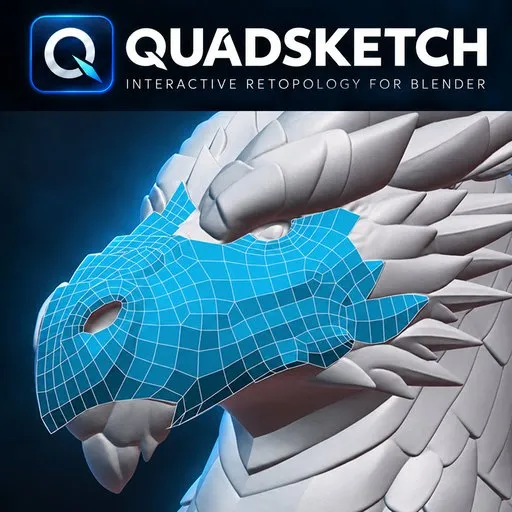
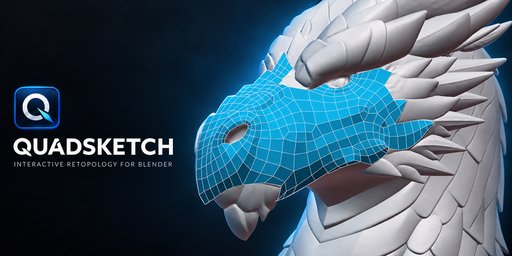
QuadSketch is an interactive retopology add-on for Blender designed to help artists create, extend, refine, and connect clean quad topology directly over source meshes.
Interactive Retopology for Blender
QuadSketch is a workflow-focused retopology add-on for Blender, designed to make creating clean quad topology faster and more interactive.
Draw directly over your source mesh, guide edge flow, build and extend surfaces, connect separate topology patches, refine your mesh, and manage loops—all within a streamlined retopology workflow.
Built for character, creature, and organic modeling, QuadSketch gives artists direct control over topology while staying close to the original surface.
Key Features
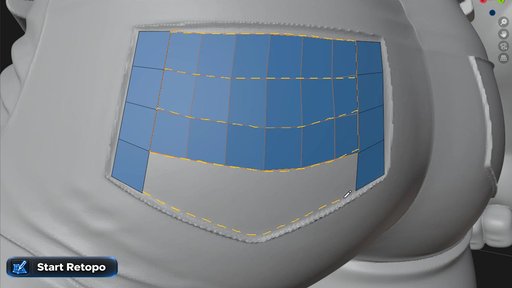
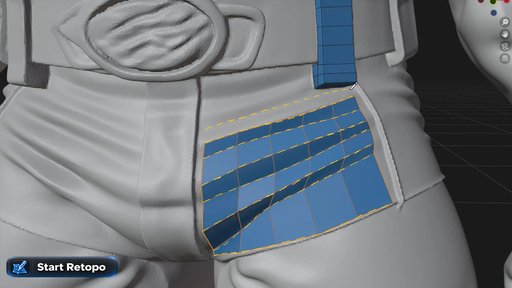
• Start Retopo — create quad topology directly from drawn strokes.
• Guide Strip — build controlled quad strips and define clean edge flow across complex surfaces.
• Vertex Surface — create and extend topology with precise vertex-based control.
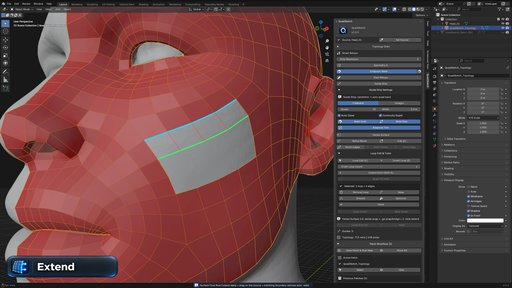
• Extend — continue existing topology while following the source surface.
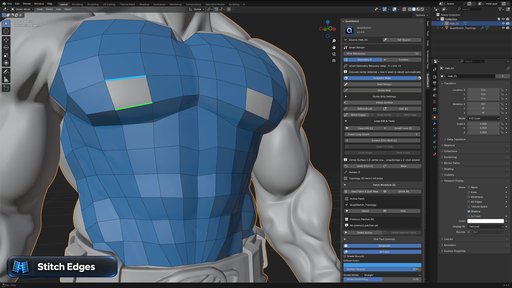
• Stitch Edges — connect separate topology patches into a continuous mesh.
• Weld Vertex & Weld Edge — merge and connect topology efficiently.
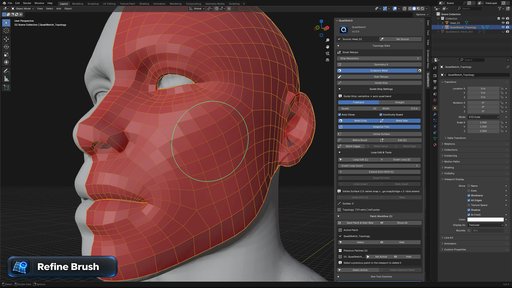
• Refine Brush — smooth and refine topology directly on the surface.
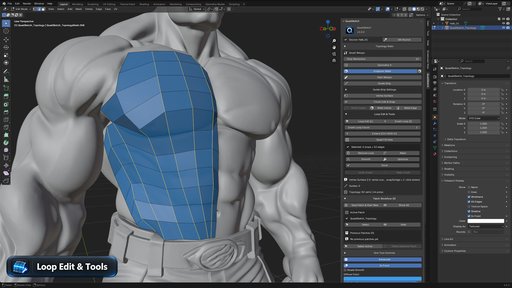
• Loop Edit & Tools — insert, remove, smooth, relax, and optimize topology loops.
• Symmetry Workflow — speed up retopology on symmetrical models.
• Patch Workflow — build larger retopology projects in manageable sections.
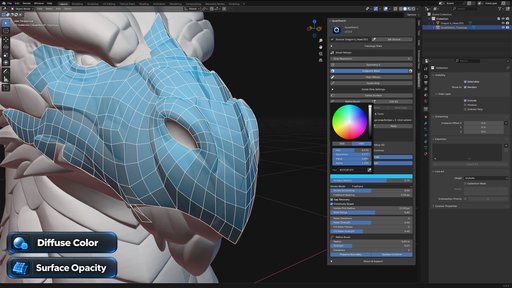
• Topology Statistics — monitor vertex and polygon counts directly in the QuadSketch panel.
• Viewport Controls — customize topology color and surface opacity for better visibility.
Core Retopology Workflow
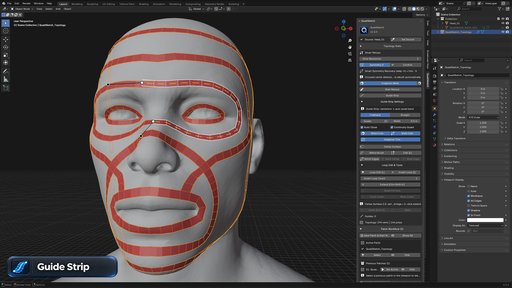
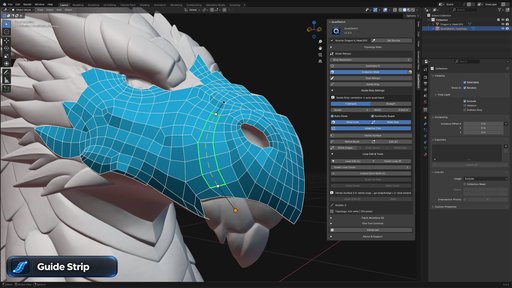
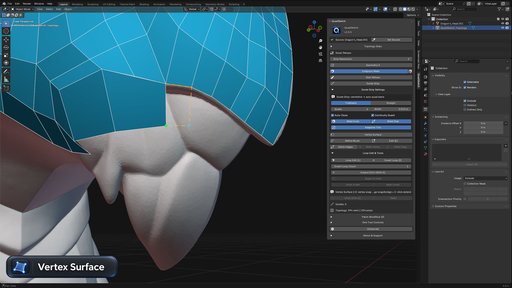
Editing & Refinement Tools
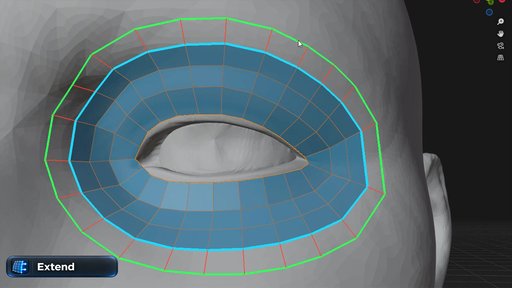
Additional Workflow & Viewport Controls
Requirements & Installation
Requirements
• Blender 4.2 or newer
• QuadSketch v1.0.0
Installation
- Open Blender and go to Edit > Preferences > Add-ons.
- Choose Install from Disk.
- Select QuadSketch_v1.0.0_Blender_4.2_Plus.zip.
- Enable QuadSketch after installation.
- Open the 3D Viewport and press N to open the sidebar.
- Select the QuadSketch tab.
Select your high-resolution source mesh, click Set Source, and you are ready to start retopologizing.
Documentation & Training
QuadSketch includes a complete user guide and a 10-part step-by-step video training series covering the main tools and retopology workflows.
Support & Updates
If you encounter a bug or compatibility issue, please include your Blender version, QuadSketch version, a short description of the issue, and a screenshot or video when possible.
Support and future updates for QuadSketch are provided through the product page.


