 Models
 Materials
 HDRIs
HDRIs
 Scenes
 Brushes
 Node Groups
 Printables
 Creators
 Creations
Fusion 360 Bridge
 add-on
Import Fusion mesh exports with welding, smooth shading and organized collections. Use the companion add-in or watch folder, then send meshes back. Windows only; Autodesk Fusion required separately.
Bring Fusion meshes into your Blender workflow.
Bring Fusion bodies into Blender as mesh files with welding, smooth shading and organized imports. Use the included Send to Blender companion add-in or a watch folder, and send mesh files back to Fusion.
Windows only. Autodesk Fusion is required and licensed separately. No Autodesk software or license is included. Tachyon Studio is independent of Autodesk. This is a mesh-exchange workflow.
Tools included
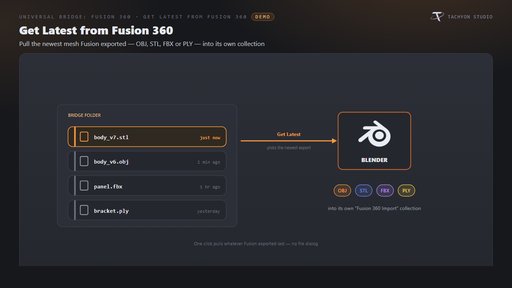
- Get Latest: import the latest OBJ, STL, FBX or PLY into a dedicated Fusion 360 Import collection.
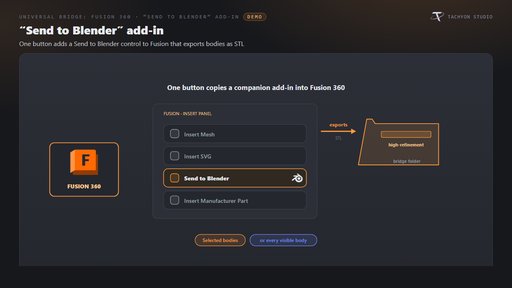
- Fusion companion add-in: export selected or visible bodies as high-refinement STL.
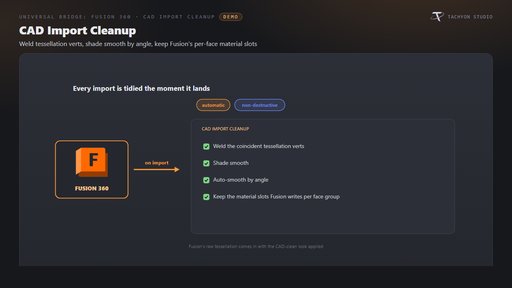
- CAD import cleanup: weld coincident vertices, smooth by angle and retain material slots.
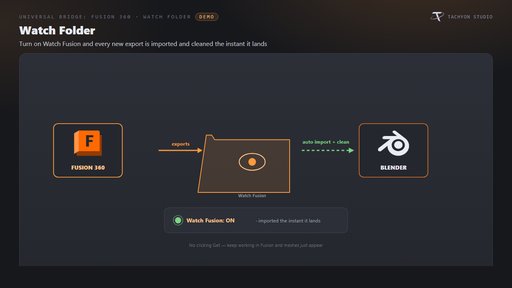
- Watch Folder: automatically import and clean new mesh files from the chosen folder.
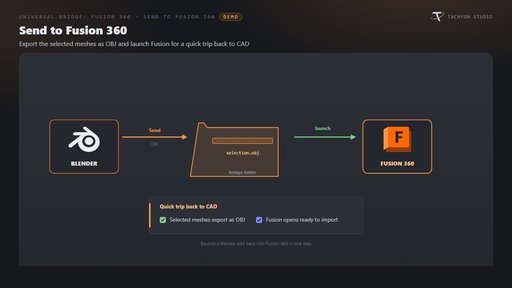
- Send to Fusion: export selected meshes as OBJ and launch Fusion.
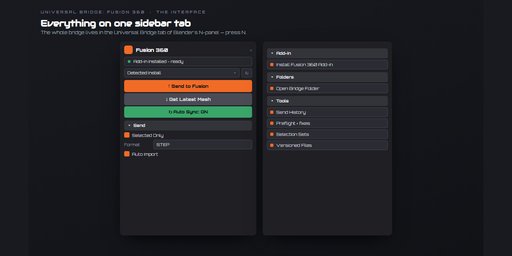
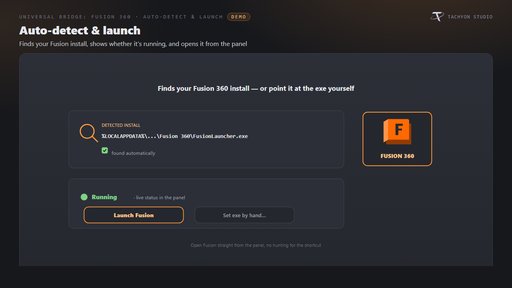
- Application detection: detect or choose the executable, check status and launch it.
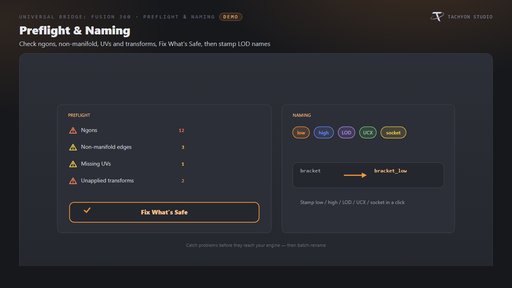
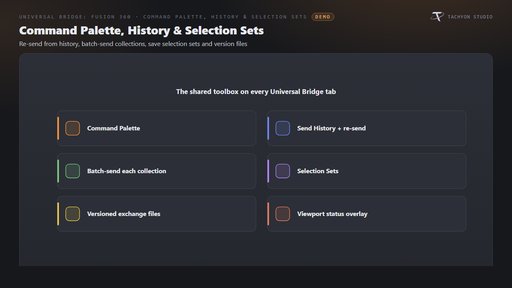
- Shared workflow tools: preflight, safe fixes, naming conventions, command palette, history, collection batches, selection sets and versioned exchange files.
- Icon preferences: branded, monochrome or native icons.
Requirements and setup
This download is the Blender 4.2–5.2 extension. The separate classic Blender 3.3–4.1 installer is not included. Windows only; macOS and Linux are unsupported. Install Autodesk Fusion under the appropriate license and enable the included Send to Blender add-in. Find the bridge in Blender’s Universal Bridge sidebar tab (N). No internet transfer is used; optional live linking uses this machine’s loopback address. Universal Bridge Manager is included.
Documentation and support
Installation and workflow documentation · Tachyon Studio Discord support
Created by Tachyon Studio.